
PJFC Solutions
PJFC Car Inspection user manual
Pre-purchase vehicle inspections on your phone, tablet or computer: checklists, photos and notes, a signed report with your logo, and a private link for the buyer.
Download PDFThe screenshots use a made-up business, cars and people.
1. Quick start
- Get your free-trial code at pjfcsolutions.com/trial (just your email; no card needed), then tap the button in the email on your phone or tablet. Your free 7-day trial starts straight away.
- Add it to your Home Screen (see Install) so your inspections are kept safe.
- Tap ⚙︎ (Settings), add your business name, phone, ABN and logo, then tap Save business details.
- Tap + New inspection, choose the level, enter the car and the buyer, and tap Start inspection.
- Work down the list: Pass, Attention, Fail or N/A. Add a note and a photo to anything that isn't a pass.
- Choose the overall result, write a short summary, sign, and tap Finish and view report.
- Tap Send to buyer for a private link, or Save to device / Print / save PDF.
2. What you need
- iPhone or iPad with iOS 17 or later (Safari), Android phone or tablet with an up-to-date Chrome, or a computer with a current Chrome, Edge, Safari or Firefox.
- The internet for the first start, to check your licence (at least every 14 days) and to send buyer links. Inspections themselves work with no signal.
- A camera for photos (any phone or tablet camera).
- A licence key after the free trial (Solo: 1 inspector, 2 devices; Team: up to 6 devices).
3. Install
Car Inspection is a web app: there's nothing to download from a store. Installing it puts an icon on your Home Screen, opens it full screen and, importantly, stops your phone clearing your saved inspections.
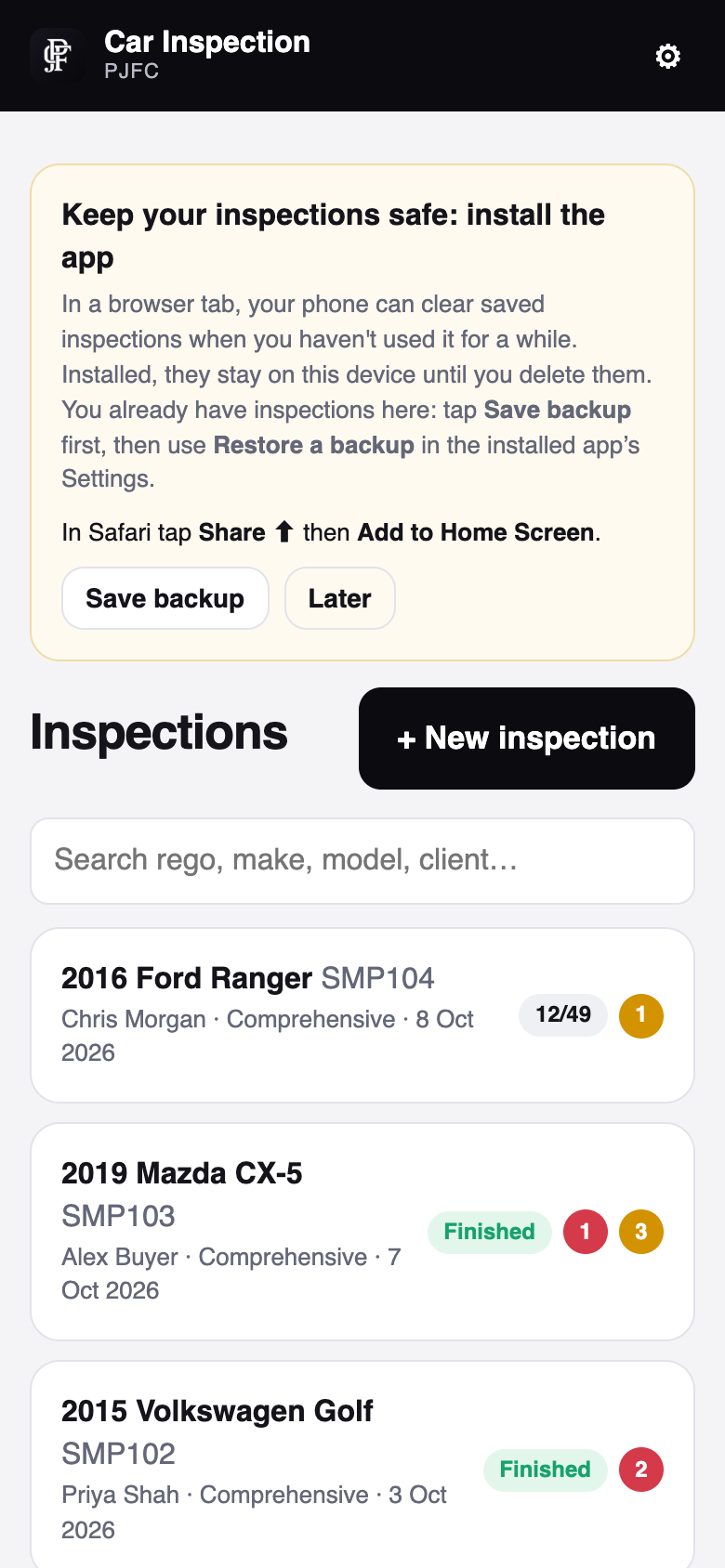
iPhone and iPad
- Open pjfcsolutions.com/app/inspect in Safari.
- Tap Share (the square with the arrow) then Add to Home Screen, then Add.
- Open Car Inspection from the new icon from now on.
Android
- Open the address in Chrome.
- Tap Install the app on the banner, or the menu ⋮ then Install app / Add to Home screen.
Mac or PC
Open the address in Chrome or Edge and click the install icon in the address bar, or in Safari on a Mac choose File › Add to Dock. You can also simply bookmark it.
App Store (iPhone and iPad)
An App Store version is on the way. When it arrives, website subscribers sign in with their licence key; nothing is lost.
4. Trial, licence and subscription
- Free trial: 7 days. Ask for a code at pjfcsolutions.com/trial or tap Email me a code on the app's start screen. One code per email covers your phone and your tablet. Tap the button in the email, or type the code (it starts with
TRIAL-) and tap Start trial. Reports made in the trial carry a "DEMO" watermark and buyer links last 14 days. - Buy a plan at pjfcsolutions.com/apps/car-inspection. Your licence key (it starts with
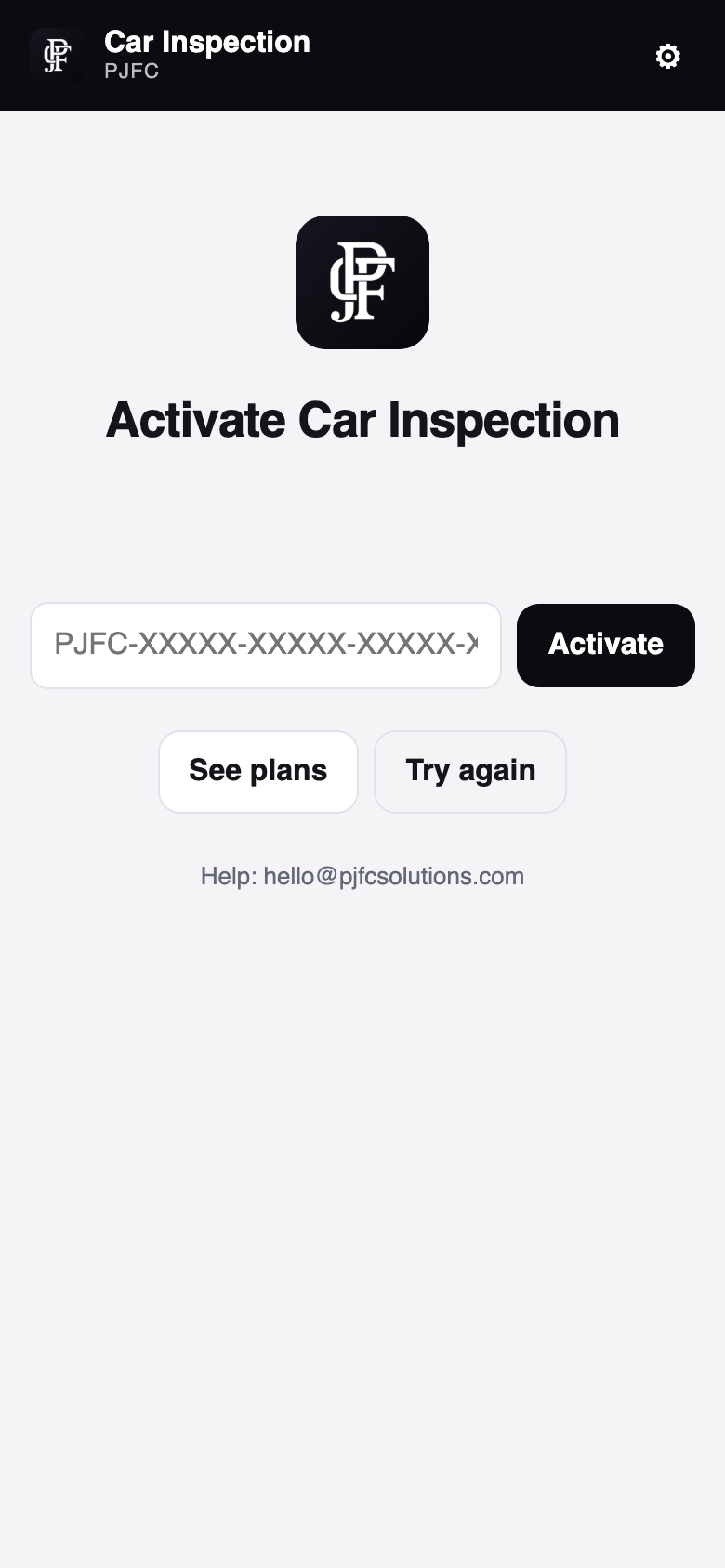
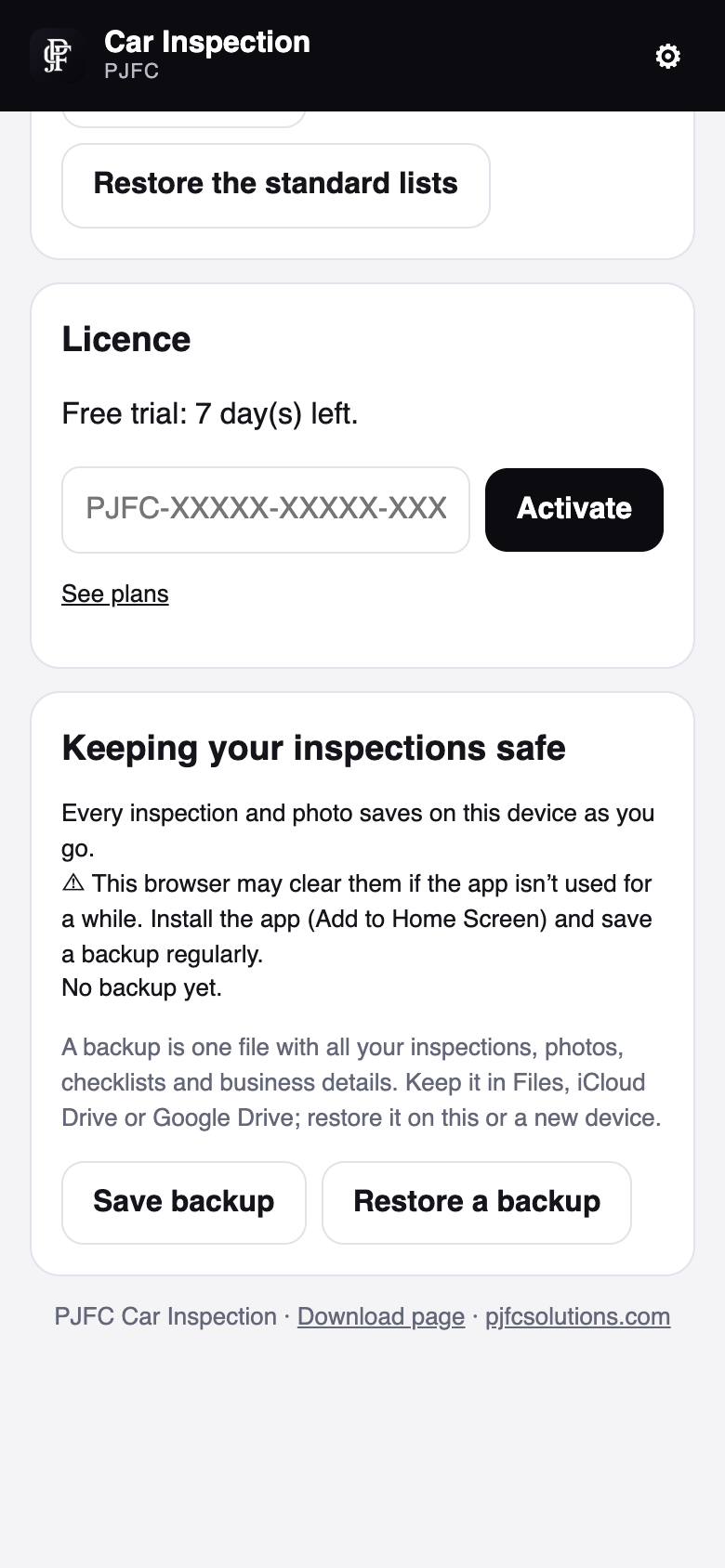
PJFC-) arrives by email and is also on your account page. - Activate: Settings › Licence, paste the key, tap Activate. When the trial has ended, the app shows the activation screen straight away.
- Plans: Solo covers 1 inspector on 2 devices (phone + tablet). Team covers up to 6 devices.
- Move to a new device: on the old one, Settings › Licence › Remove licence from this device, then activate on the new one.
- Offline: the app checks your licence when online and keeps working for up to 14 days without a connection.
5. Tour of the screen
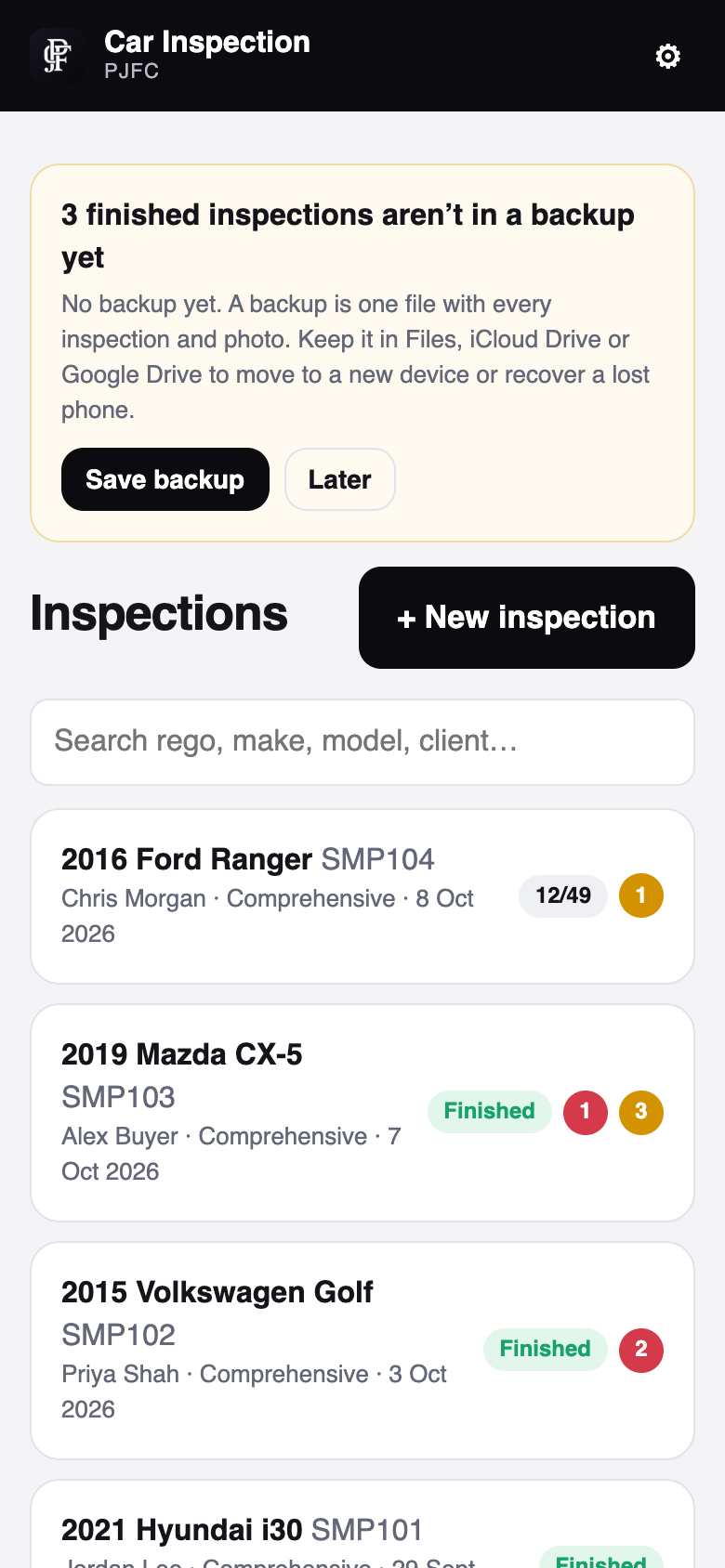
- Top bar: the app name (tap to go back to the list), the trial badge while on trial, and ⚙︎ Settings.
- Inspections list: newest first. Each row shows the car, rego, buyer, level and date; unfinished ones show progress (e.g.
12/49), finished ones say Finished. Red and amber dots count fails and items needing attention. - Search: type part of a rego, make, model or the buyer's name.
- + New inspection starts a new one.
- Reminders at the top: install the app, back up, or finish your business details.
6. How to
Start an inspection
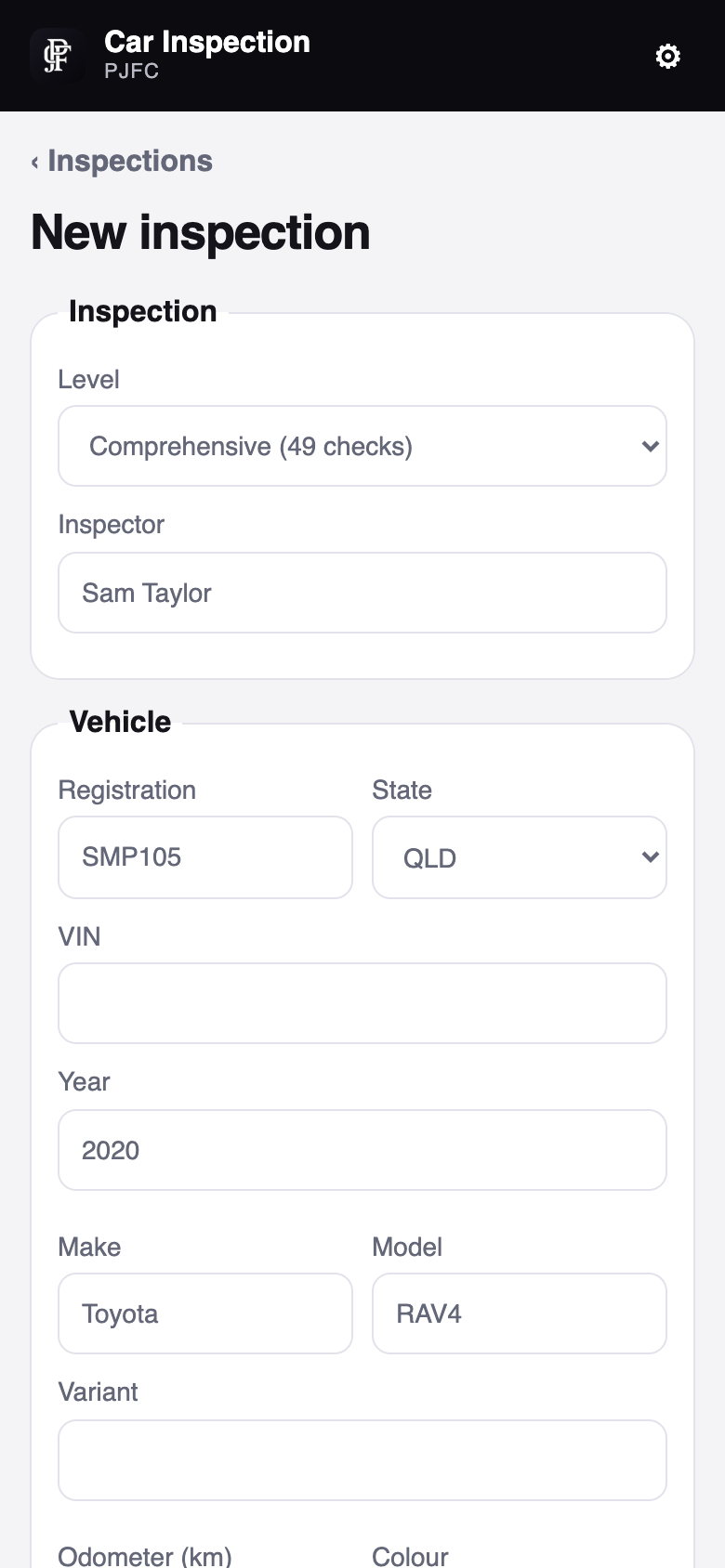
- Tap + New inspection.
- Choose the Level: Essential, Comprehensive or Premium. Each level includes all the checks of the levels before it.
- Check the Inspector name (it defaults to the one in Settings).
- Enter the vehicle: rego and state, VIN, year, make, model, variant, odometer, colour and where you inspected it.
- Enter the buyer (your client) and, optionally, the seller.
- Tap Start inspection. It gets the next reference number (INS-0001, INS-0002 …).
Work through the checklist
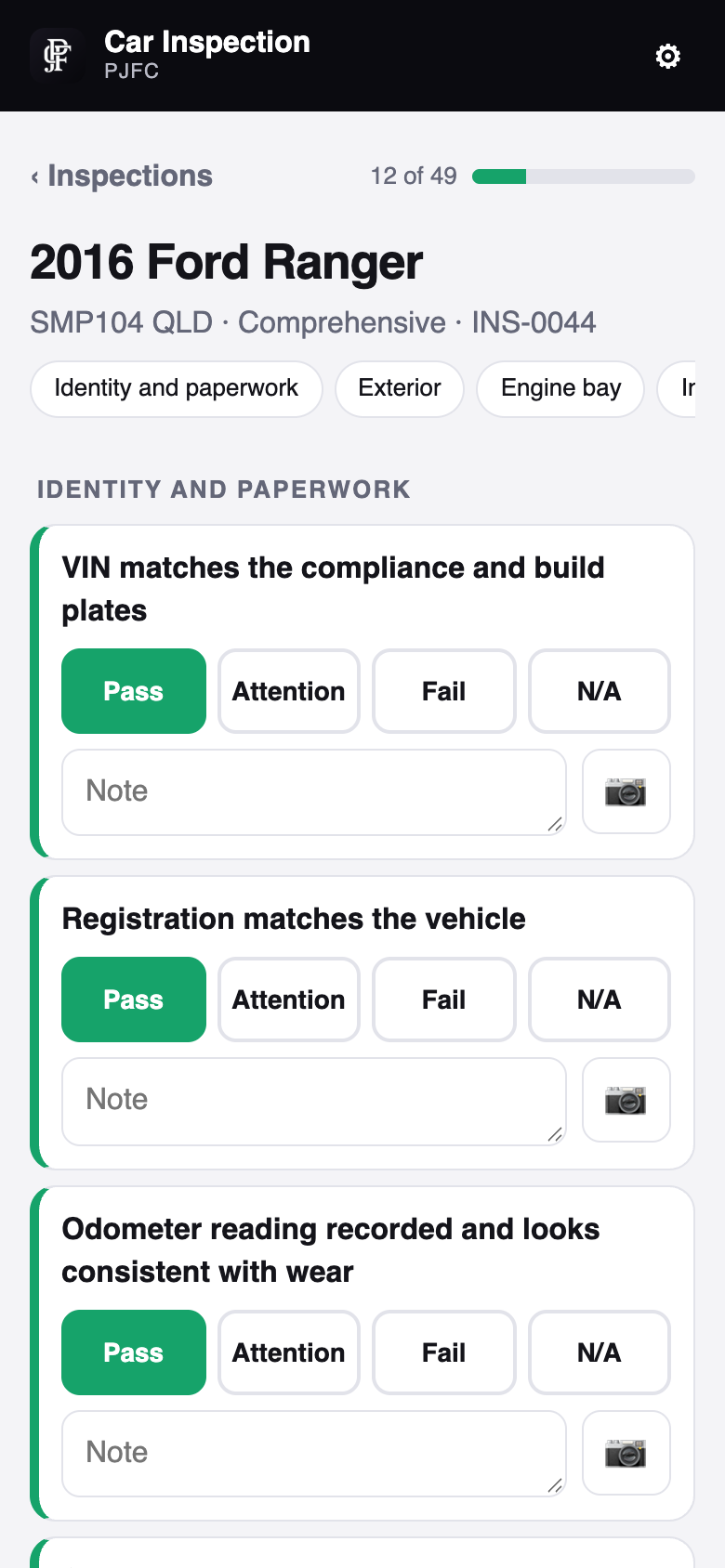
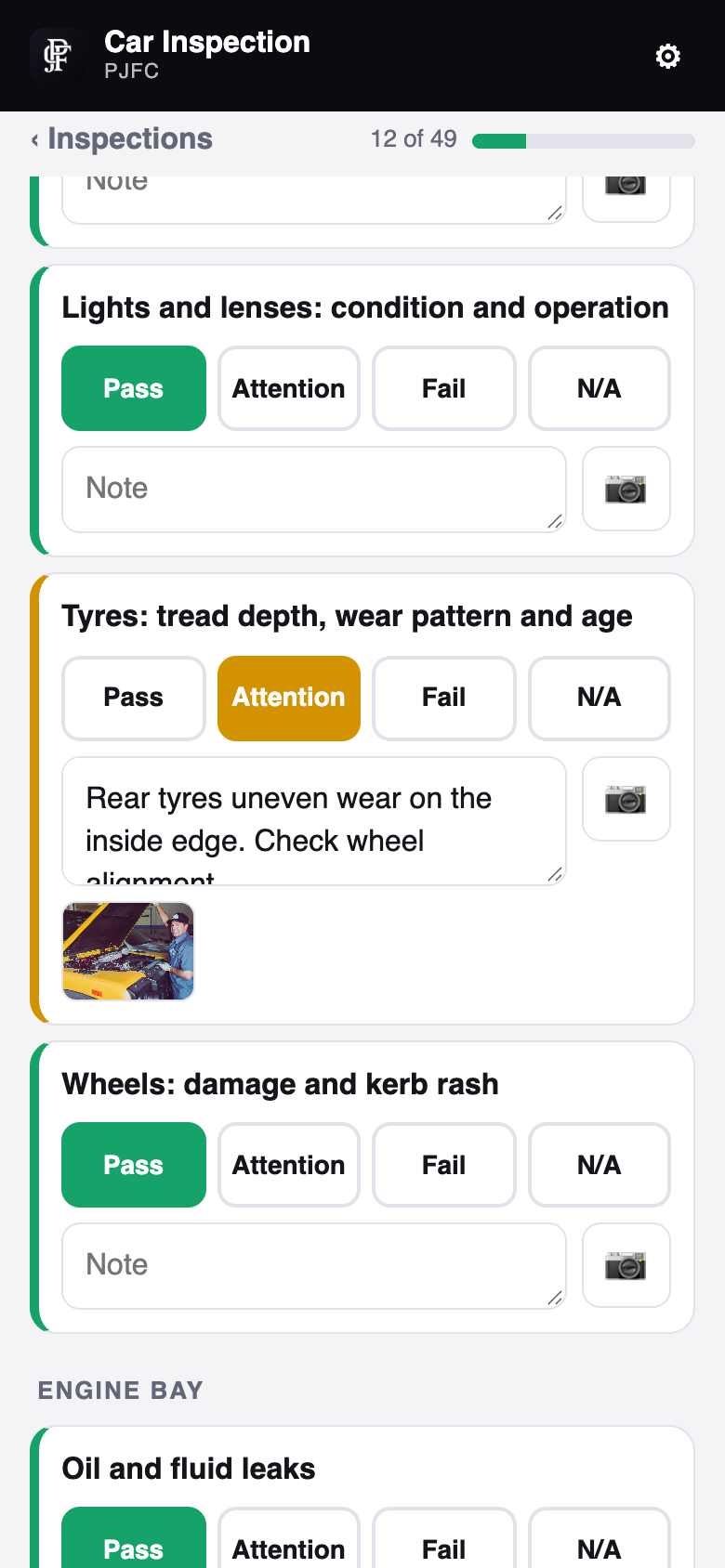
- Tap Pass, Attention, Fail or N/A. Tap the same button again to clear it.
- Choosing Attention or Fail puts the cursor in the Note box. Write what you found and what it means for the buyer.
- Tap the camera to add photos to that item (take new ones or pick several). Tap a photo to remove it.
- Use the section buttons under the heading to jump (Exterior, Engine bay …). The bar at the top shows your progress.
- Everything saves as you go. You can leave and come back at any time.
- Checked something that isn't on the list? Under Add a check, type it and tap Add.
- General photos (front three-quarter, odometer, compliance plate …) go in their own section.
Finish and sign
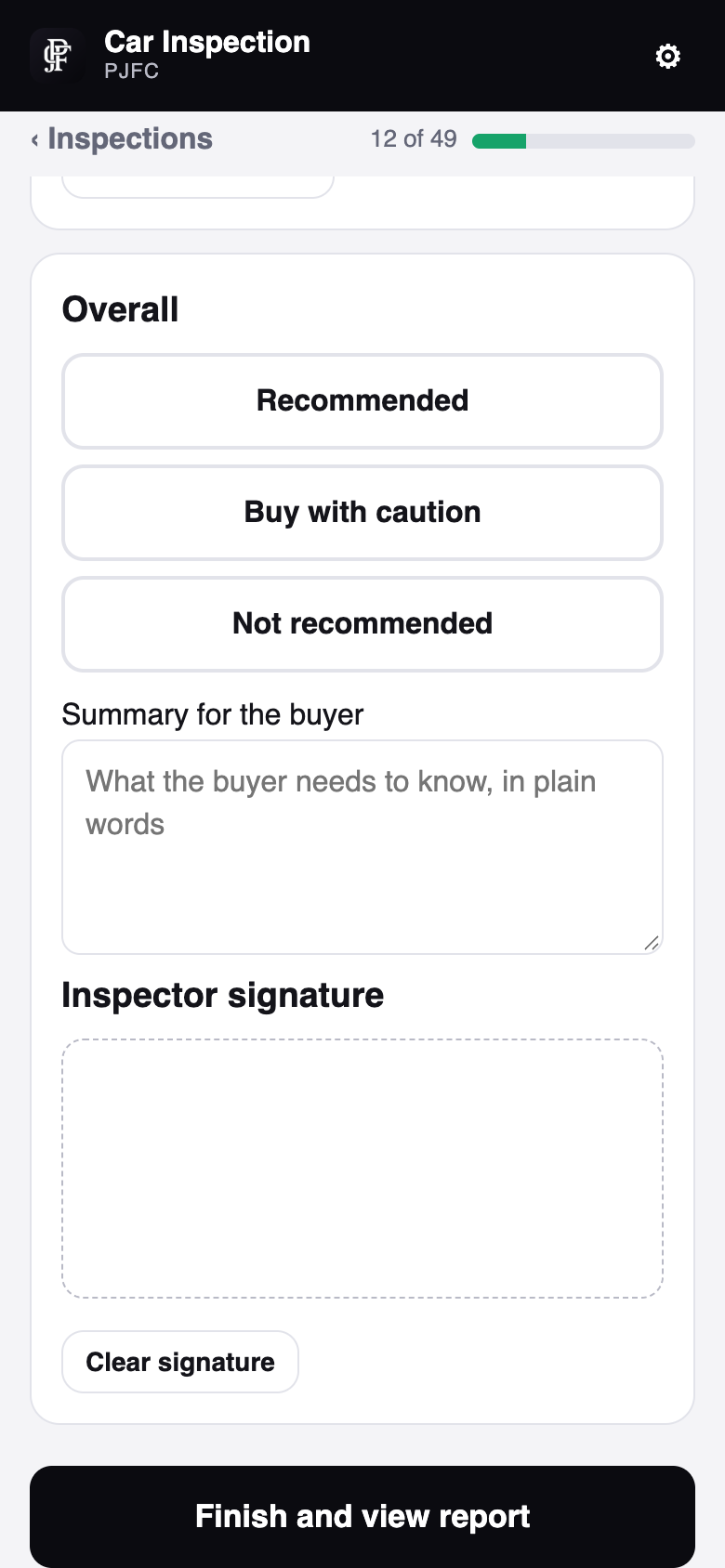
- Under Overall, choose Recommended, Buy with caution or Not recommended.
- Write the Summary for the buyer in plain words, including likely costs.
- Sign in the box with your finger (or mouse). Clear signature starts again.
- Tap Finish and view report. Any items without a result appear as "Not checked".
The report: send, save or print
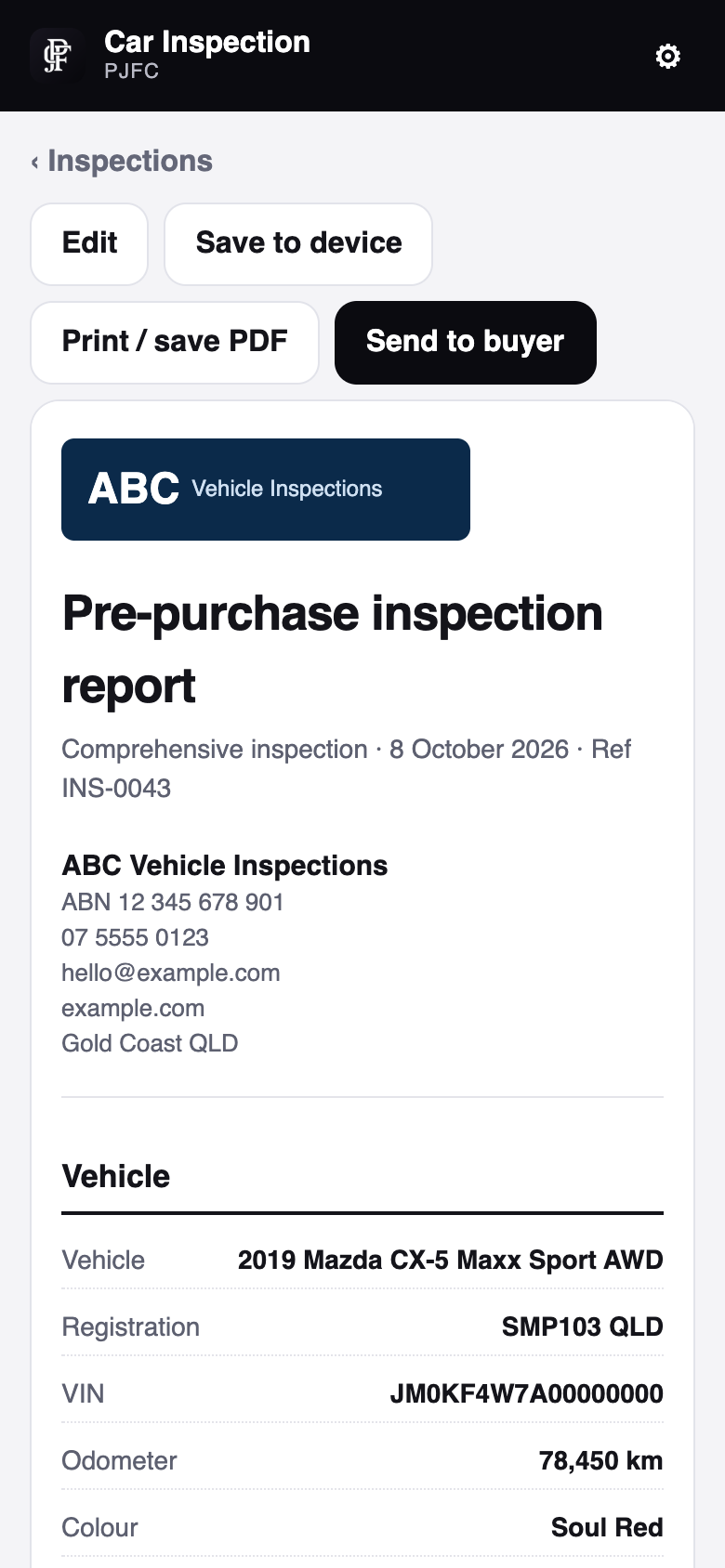
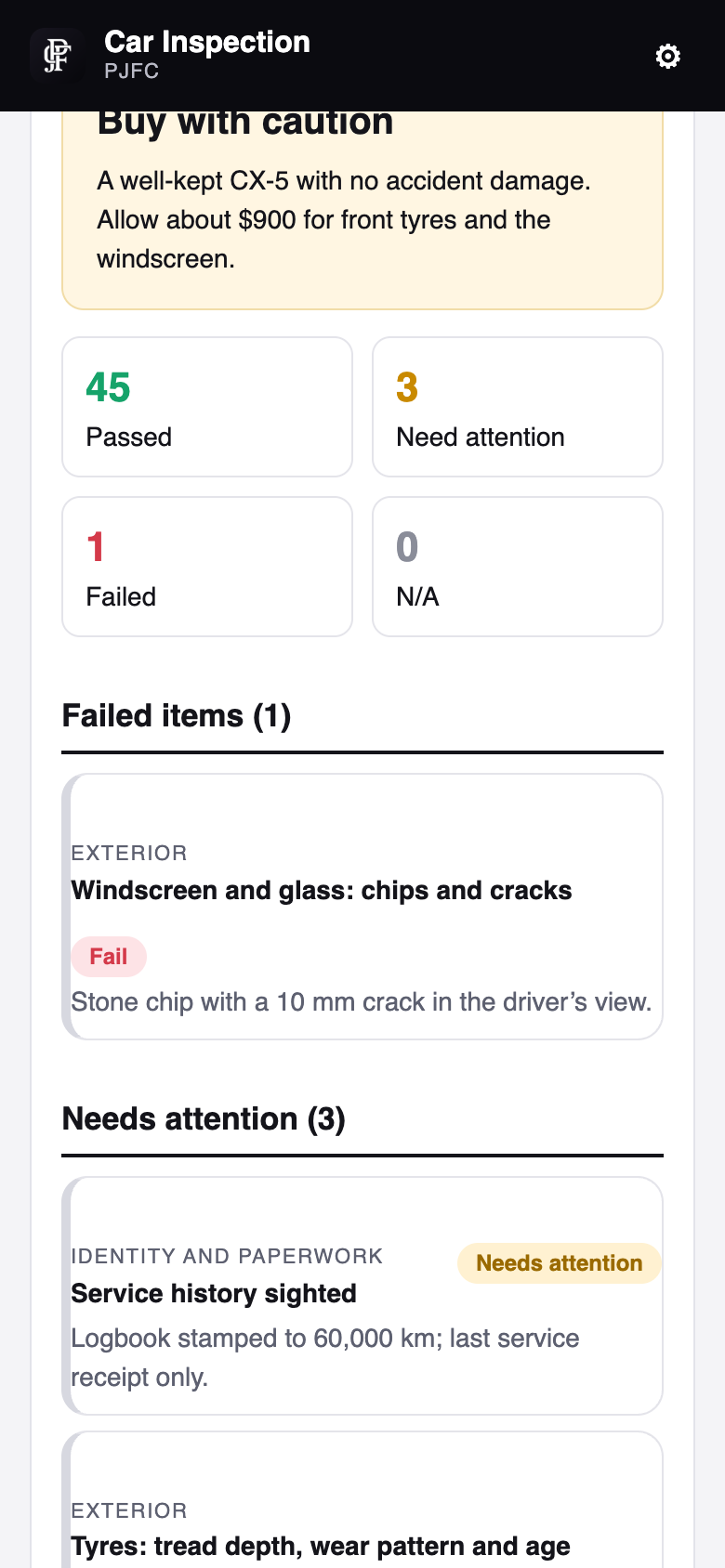
- The report lists fails first, then items needing attention, then passes, with your notes and photos, your logo and details, the signature and your fine print.
- Send to buyer uploads the report and photos and gives a private link to text or email (the share sheet opens on phones). Afterwards the button says Copy buyer link.
- Save to device saves the whole report, photos included, as one file (in Files, Downloads or Google Drive). It opens on any phone or computer without the app.
- Print / save PDF opens the print screen; choose "Save as PDF" for a PDF.
- Edit re-opens the inspection to change anything; finish again to update the report.
Find an old inspection
On the list, type in Search (rego, make, model or buyer). Tap the row: finished ones open the report, unfinished ones open the checklist.
7. Settings reference
| Setting | What it does |
|---|---|
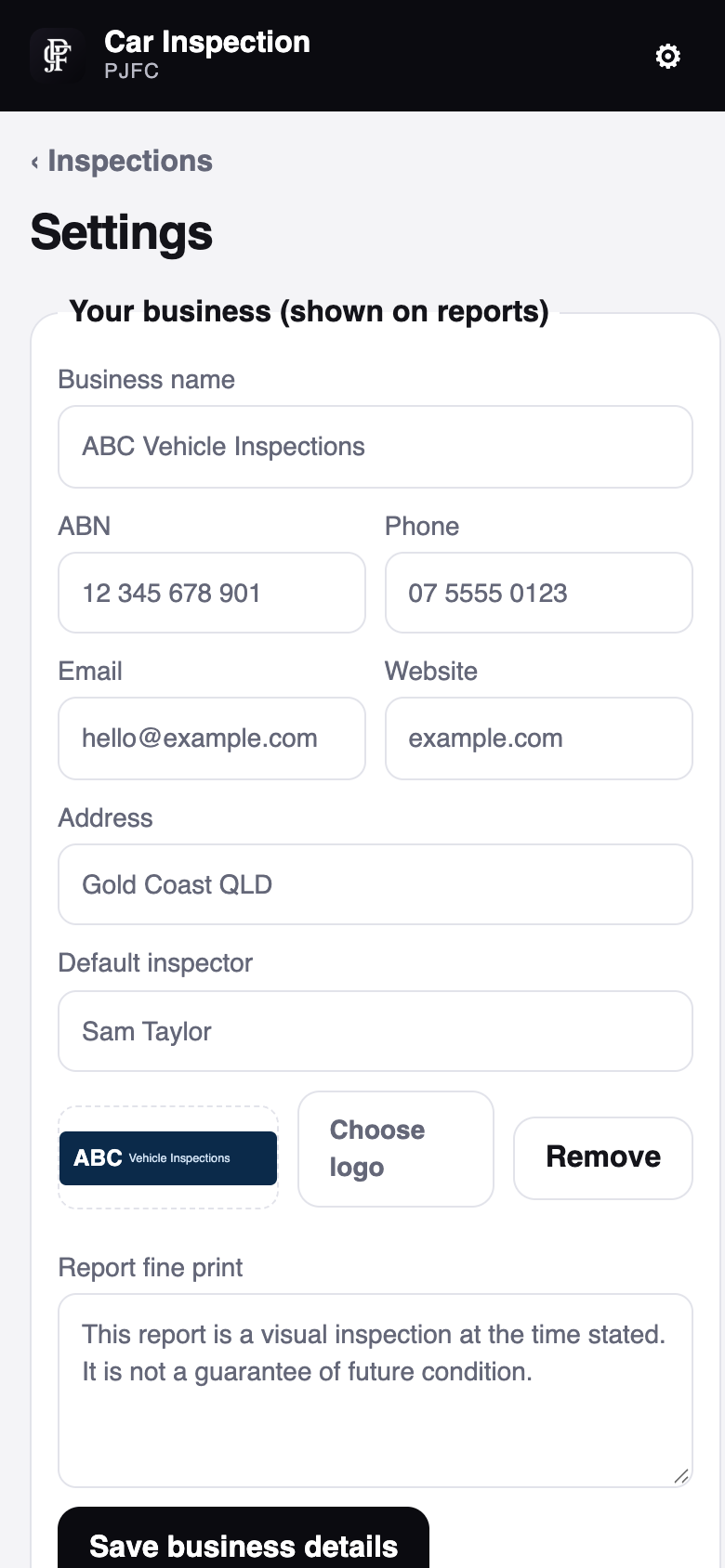
| Business name, ABN, phone, email, website, address | Shown at the top of every report. |
| Default inspector | Filled in on each new inspection (you can change it per inspection). |
| Logo | Choose a logo image (PNG or JPG). It's resized automatically. Remove takes it off. |
| Report fine print | Your terms or disclaimer, printed at the bottom of every report. |
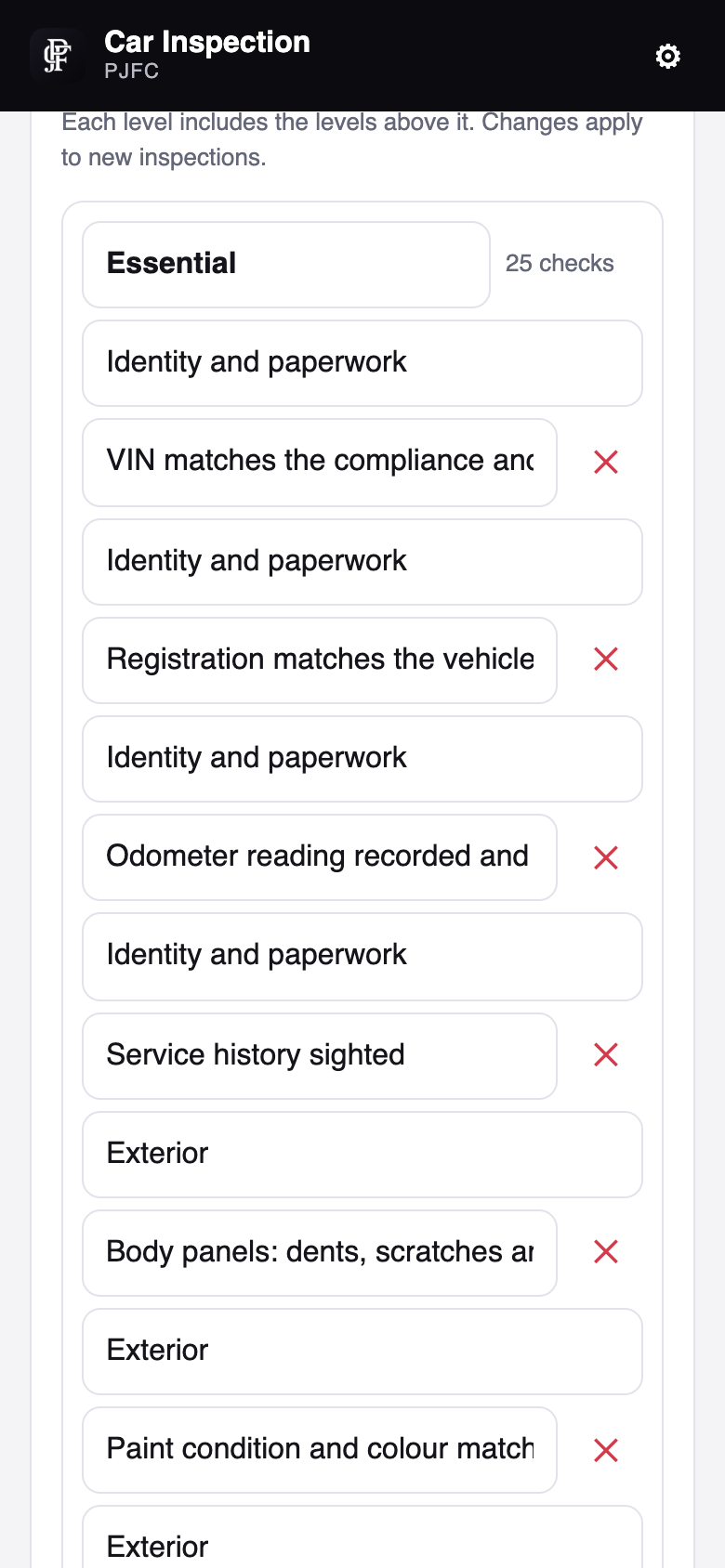
| Checklists | Rename a level, add or remove checks, change a check's section, add or delete levels. Each level includes the levels above it. Changes apply to new inspections. Restore the standard lists puts the originals back. |
| Licence | Shows your plan or trial days left. Activate a key, or remove the licence from this device. |
| Keeping your inspections safe | Shows whether this device keeps your data permanently and when you last backed up. Save backup and Restore a backup. |
8. Tips and tricks
- Install it first. A Home Screen app keeps your inspections safe and opens full screen.
- Set up your business before your first job, so the first report already has your logo and fine print.
- Photo every fail and attention item. Buyers trust what they can see, and it protects you.
- Write the summary for the buyer, not a mechanic: what's wrong, does it matter, and roughly what it costs.
- Make your own levels. Add the checks you always do (e.g. "PPSR checked", "Cambelt due"), and remove ones you never use.
- Use a tablet in landscape for bigger buttons in the engine bay; use your phone for photos.
- Back up every week to iCloud Drive or Google Drive. It's one file with everything.
- Send the buyer link while you're with the buyer; it opens on any phone with no app.
- No signal at the car? Keep going. Everything saves on the device; send the report once you're back in range.
9. Troubleshooting
| Problem | Fix |
|---|---|
| "Enter the free trial code from your email" | New devices need a trial code. Tap Email me a code (check the spam folder too), or use the code you already have. Each code works on 2 devices. |
| "That trial code isn't valid or has been used" | Check you typed it exactly, or use the button in the email. If it's already on 2 devices, buy a plan or email us. |
| "Connect to the internet" when I open the app | The first start and the licence check need the internet. Connect, then tap Try again. After that it works offline for up to 14 days. |
| The camera doesn't open | Allow camera access: iPhone Settings › Safari › Camera › Allow (or Settings › Car Inspection if installed from the App Store); Android: Chrome › Site settings › Camera. |
| My inspections disappeared on iPhone | If you added the app to the Home Screen after using it in Safari, the old ones are still in Safari: open Safari, Settings › Save backup, then Restore a backup in the Home Screen app. If Safari cleared them after a long break, restore your latest backup. |
| "Your plan covers 2 devices, and it's already on 2" | Remove the licence from a device you no longer use (Settings › Licence), or email us to move it. |
| "That doesn't look like a licence key" | Copy the whole key including PJFC-. Spaces and dashes don't matter. |
| Send to buyer stops at "Uploading photos" | The connection dropped. Move to better signal or Wi-Fi and tap Send to buyer again. |
| "This device's date looks wrong" | Set the date and time to automatic, then connect to the internet. |
| Restore says it isn't a Car Inspection backup | Choose the .json backup file made by the app (named Car-Inspection-backup-…), not a report. |
| Printing cuts photos or looks small | Use Save to device instead and open the file, or print from a computer. In the print screen, turn on "Background graphics". |
| The trial ended | Your inspections are safe. Buy a plan and activate your key; everything opens again. |
10. FAQ
Does it work with no signal?
Yes. Inspections, photos, notes and signatures all save on the device. You need the internet only to start, to check the licence now and then, and to send buyer links.
Who can see the buyer link?
Only people you give the link to. It's a private, random address that search engines are told not to list.
Can I use my own checklist?
Yes. Edit any level in Settings › Checklists, or add your own levels.
Can I use it on my phone and my tablet?
Yes. Solo covers 2 devices, Team up to 6. Each device keeps its own inspections; move them with a backup.
Can I change a report after finishing?
Yes: open it and tap Edit, then finish again. If you already sent a link, send it again so the buyer gets the new version.
How do I cancel?
From your account page. Your inspections stay on your device.
11. Updates, backups and your data
- Updates arrive by themselves: when you're online, the app fetches the latest version and uses it the next time you open it. There's nothing to install.
- Where your data lives: inspections, photos and settings are saved on your device. They're only sent to pjfcsolutions.com when you tap Send to buyer (that report and its photos only).
- Backups: Settings › Save backup makes one file with every inspection, photo, checklist and your business details. Keep it in iCloud Drive, Google Drive or on a computer. The app reminds you if finished inspections haven't been backed up for a few days.
- Restore: Settings › Restore a backup and choose the file. Inspections already on the device stay; where both have the same inspection, the most recently changed copy is kept.
- New phone: back up on the old one, install on the new one, restore, then move your licence (Settings › Licence).
12. Getting help
Email hello@pjfcsolutions.com with your device (e.g. iPhone 15, Samsung tablet), what you tapped and what you saw. A screenshot helps. Please don't send your licence key in full; the last 5 characters are enough.
PJFC Car Inspection is made by PJFC Solutions, a trading name of EPQLD Pty Ltd ATF The Nippon Trust QLD (ABN 97 193 310 848).