
Contents
- Quick start
- What you need
- Sign-up and sign-in
- Licence and subscription
- Tour of the screen
- How to (step by step)
- Settings reference
- Tips and tricks
- Troubleshooting
- FAQ
- Updates, backups and your data
- Getting help
1. Quick start
From purchase to your first booking. Each step is covered in detail later.
- Buy a plan on pjfcsolutions.com. Your licence key arrives by email.
- Create your workshop from the link in that email: enter the key, your workshop's name and your state.
- Make your admin login on the next screen (this link works once).
- Fill in the welcome page: business details, logo, time zone, service-area postcodes and the services you offer.
- Set your prices in Manage → Services and prices. Every price starts at $0, so nothing is quoted until you set it.
- Set your hours in Calendar → Opening hours & closed days.
- Add your staff in Manage → Team and permissions.
- Connect texts, email and card payments in Manage → Messages and connections.
- Switch on online booking in Manage → Business settings and put the booking link on your website and Google profile.
- Practise first if you like: Manage → Test profile gives you a made-up copy where nothing is ever sent.
2. What you need
- A web browser: Chrome, Safari, Edge or Firefox on a computer, tablet or phone. Nothing to install.
- An internet connection.
- Optional accounts, all in your own business's name so the money and messages are yours:
- Twilio for texts and phone calls (an Australian number needs your business ID and address on file with Twilio).
- Stripe for booking deposits and invoice payment links. Money goes straight to your Stripe account.
- Business email on iCloud, Gmail/Google Workspace or another provider that supports IMAP.
- Facebook Page and Instagram if you want those messages in the Inbox.
- PJFC Car Inspection (optional) if your inspectors use it on phones or tablets.
3. Sign-up and sign-in
Create your workshop
- Open the link in your purchase email (or go to the start page and paste your licence key).
- Enter your workshop name, choose your CRM's web address (or leave it blank and we'll make one from your name), your state and your email.
- Click Create my workshop. Your workshop gets its own private database: nobody else's data is ever mixed with yours.
Make your admin login
You go straight to Create your admin account. Choose a username and a password of 8 or more characters. This page only opens from your one-time set-up link, so nobody else can claim your workshop. Lost the link? Email us and we'll send a new one.
Signing in later
Go to your CRM's address (it's in your welcome email) and log in. After 5 wrong passwords for a username, or 20 from one connection, logins pause for 15 minutes.
4. Licence and subscription
| Plan | Workshops | Staff logins | AI included each month |
|---|---|---|---|
| Solo | 1 | Up to 3 | Up to US$5 of AI |
| Workshop | 1 | Up to 10 | Up to US$10 of AI |
| Multi-site | Up to 3, each its own CRM | Unlimited | Up to US$10 of AI per workshop |
Every plan has every feature. Texts and calls are paid to Twilio by your workshop directly. Manage → Team and permissions shows how many staff logins you're using. For Multi-site, use the same licence key at the start page for each workshop.
- Plans are monthly or yearly (a year costs 10 months). Manage or cancel them from your account at pjfcsolutions.com.
- Your CRM checks your licence about once a day. If pjfcsolutions.com can't be reached, nothing changes: you're never locked out because of an internet hiccup.
- If a plan ends or a payment fails for good, your workshop is paused: staff and customers see a short notice, and all your data is kept. Renew and it opens again straight away.
- Cancelled plans keep working to the end of the period you've paid for.
5. Tour of the screen
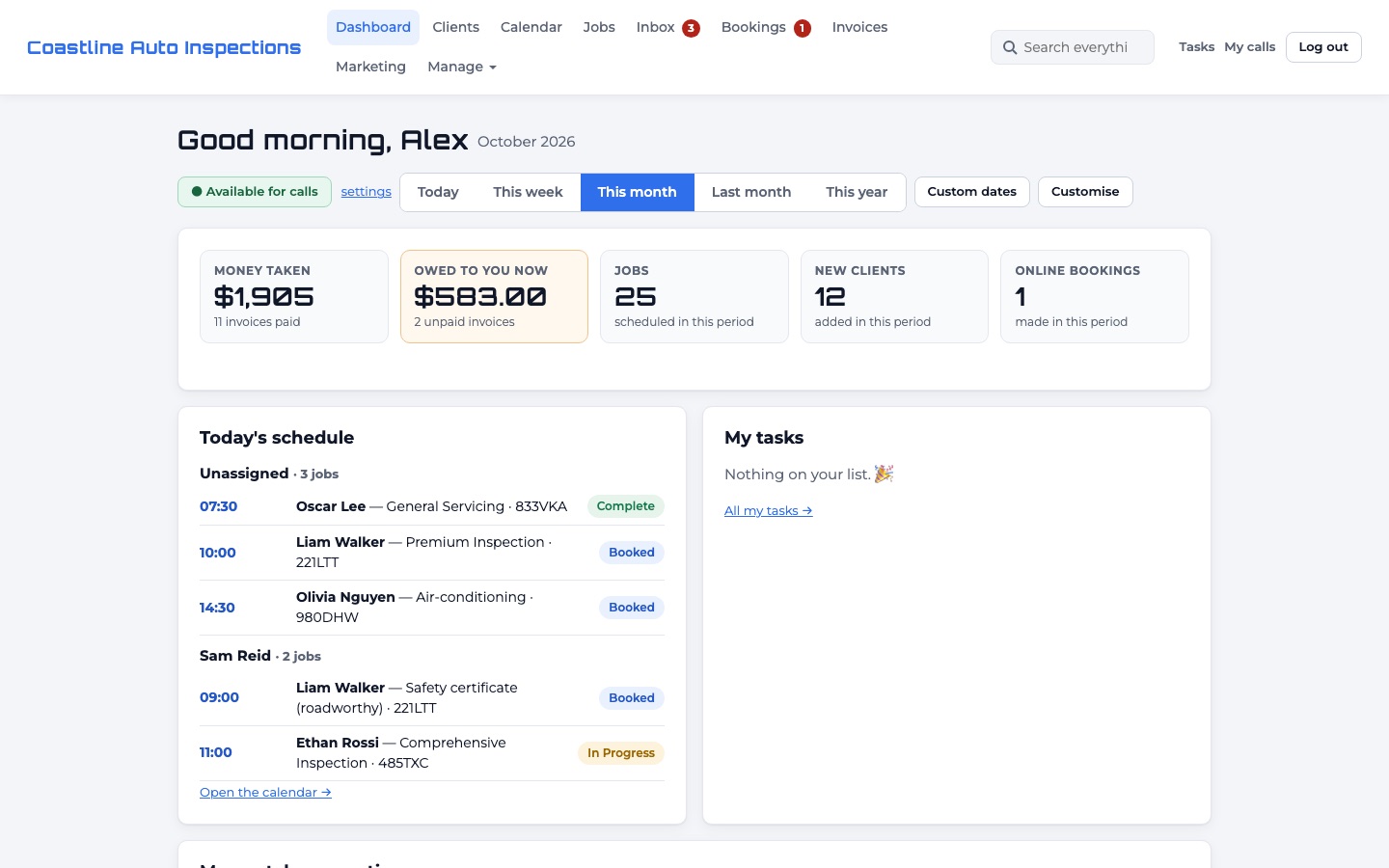
| Menu | What it's for |
|---|---|
| Dashboard | Your day at a glance. Arrange or hide panels with the layout button. Switch yourself Available/Off for calls. |
| Clients | People and businesses, their vehicles, history, files and messages. |
| Calendar | Day and week views of every job, by technician. |
| Jobs | Every job, with filters by status and technician. |
| Inbox | Texts, emails, website chat, voicemail and social messages in one list. |
| Bookings | Online bookings waiting for you to approve (the number shows how many). |
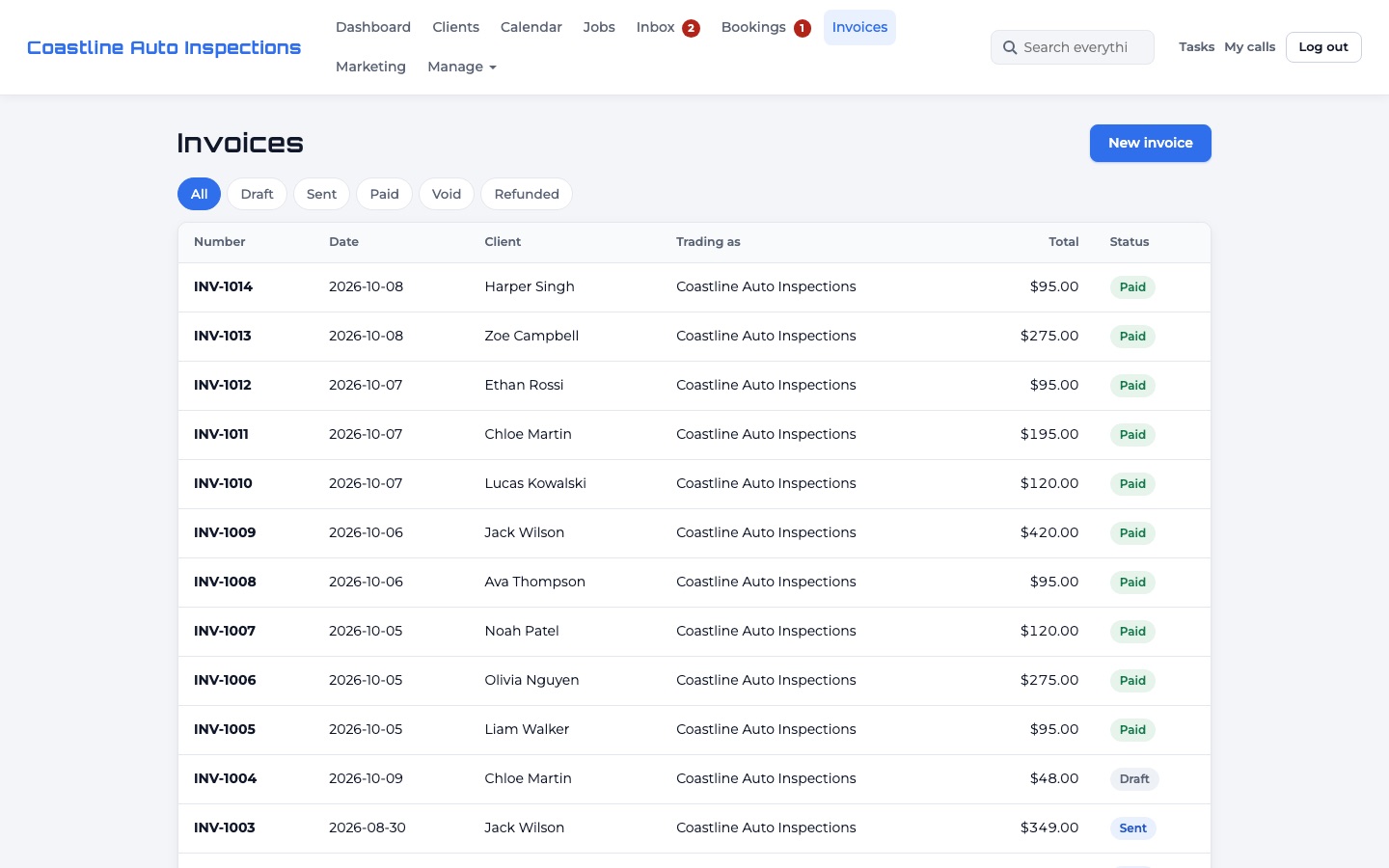
| Invoices | Tax invoices, payment links and what's owing. |
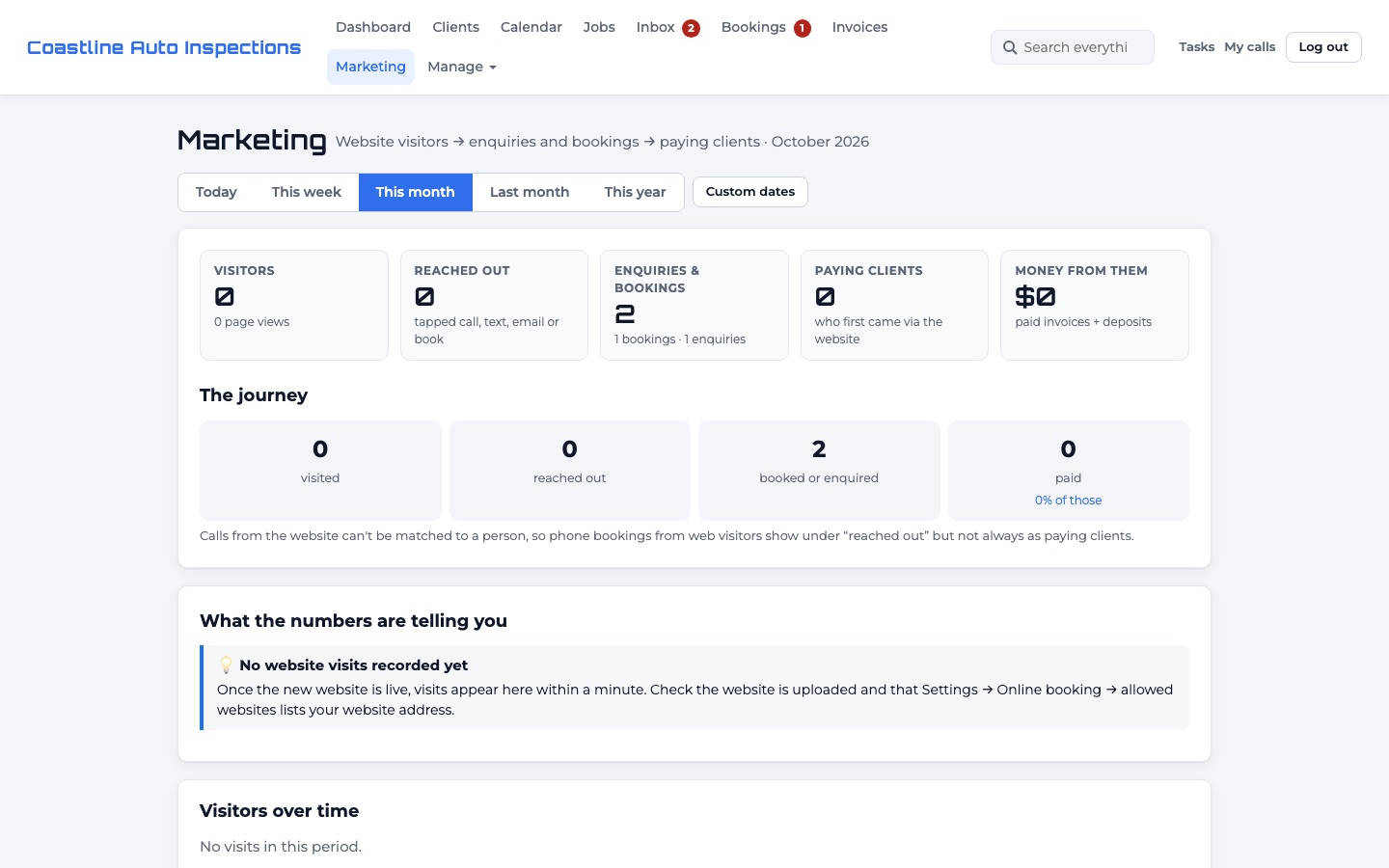
| Marketing | Website visitors to paying customers, AI settings, review requests and marketing lists. |
| Manage | Reports, services and prices, activity log, team, settings, connections, PJFC Car Inspection and the Test profile. |
The search box at the top finds clients, vehicles (by rego or VIN), jobs and invoices. Tasks shows your to-do list; My calls your recent calls.
6. How to
Welcome set-up
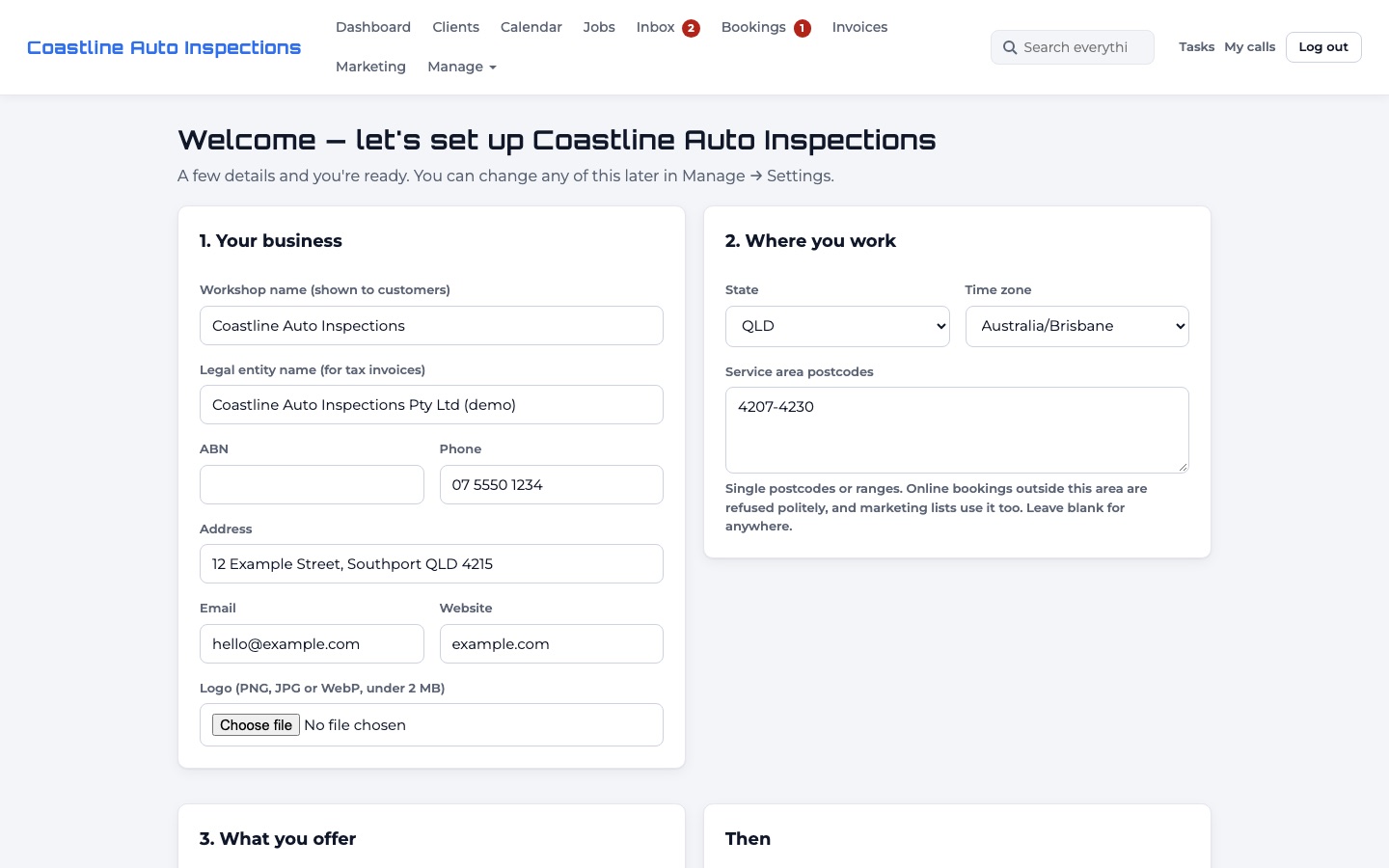
The first time an admin logs in, the welcome page opens. You can come back to it any time at /welcome, and everything on it can also be changed in Settings.
- Your business: the name customers see, legal name and ABN for tax invoices, phone, address, email, website and logo (PNG, JPG or WebP, under 2 MB).
- Where you work: your state and time zone (every time in the CRM uses it), and your service-area postcodes, e.g. 4207-4230, 4270-4275.
- What you offer: untick anything you don't do.
Services and prices
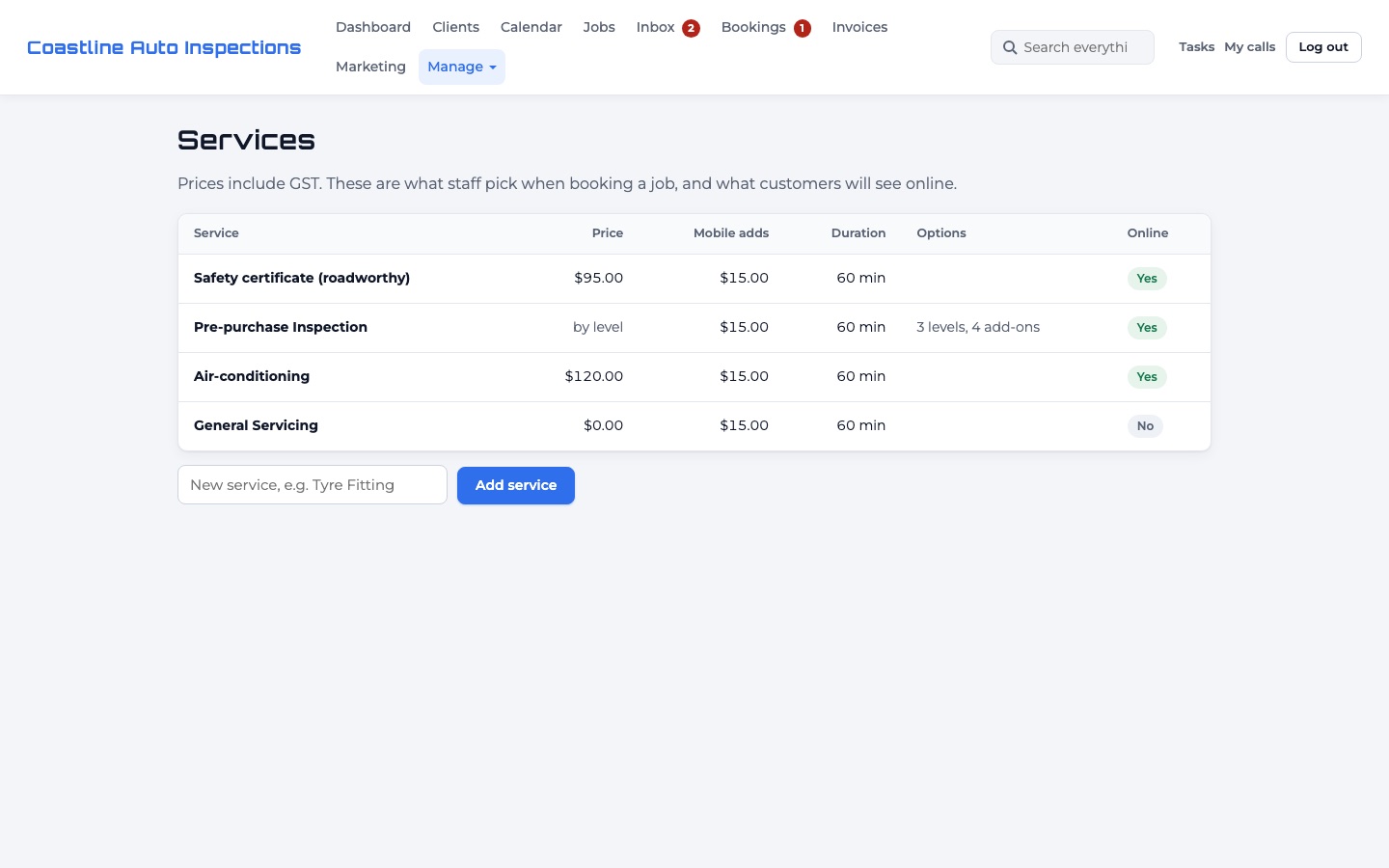
Manage → Services and prices. Your workshop starts with roadworthy (named the way your state names it), pre-purchase inspections at three levels with add-ons, air-conditioning and general servicing. All are editable.
- Prices include GST and start at $0. Set them before you switch on online booking.
- Each level has a "what's included" list. Lines are also the technician's checklist, unless they start with + (customer-facing only, like "PDF report with photos").
- A higher level can include everything in the one below ("Everything in Essential, plus:").
- Add-ons marked "Included in Premium" are never charged on a Premium booking.
- Turn online booking on or off per service. Servicing and repairs usually stay "contact us".
Opening hours and closed days
Calendar → Opening hours & closed days has three sets of hours:
- Workshop hours: when jobs can go in the diary.
- Office hours: what the public sees. Calls, the AI and after-hours messages follow these.
- Online booking hours: the first and last start time customers can pick.
Add closed days (holidays, training days) and online booking skips them automatically.
Staff and permissions
- Manage → Team and permissions → Add a person.
- Give them a username, password, mobile and email, and tick what they can do: see all jobs or only their own, inspect, invoice, see money, send messages, make calls, manage bookings and more.
- Admins can do everything, including settings and the team. Keep admin for owners and managers.
- When someone leaves, deactivate them. Their history stays and their jobs can be reassigned.
Texts, calls, email and card payments
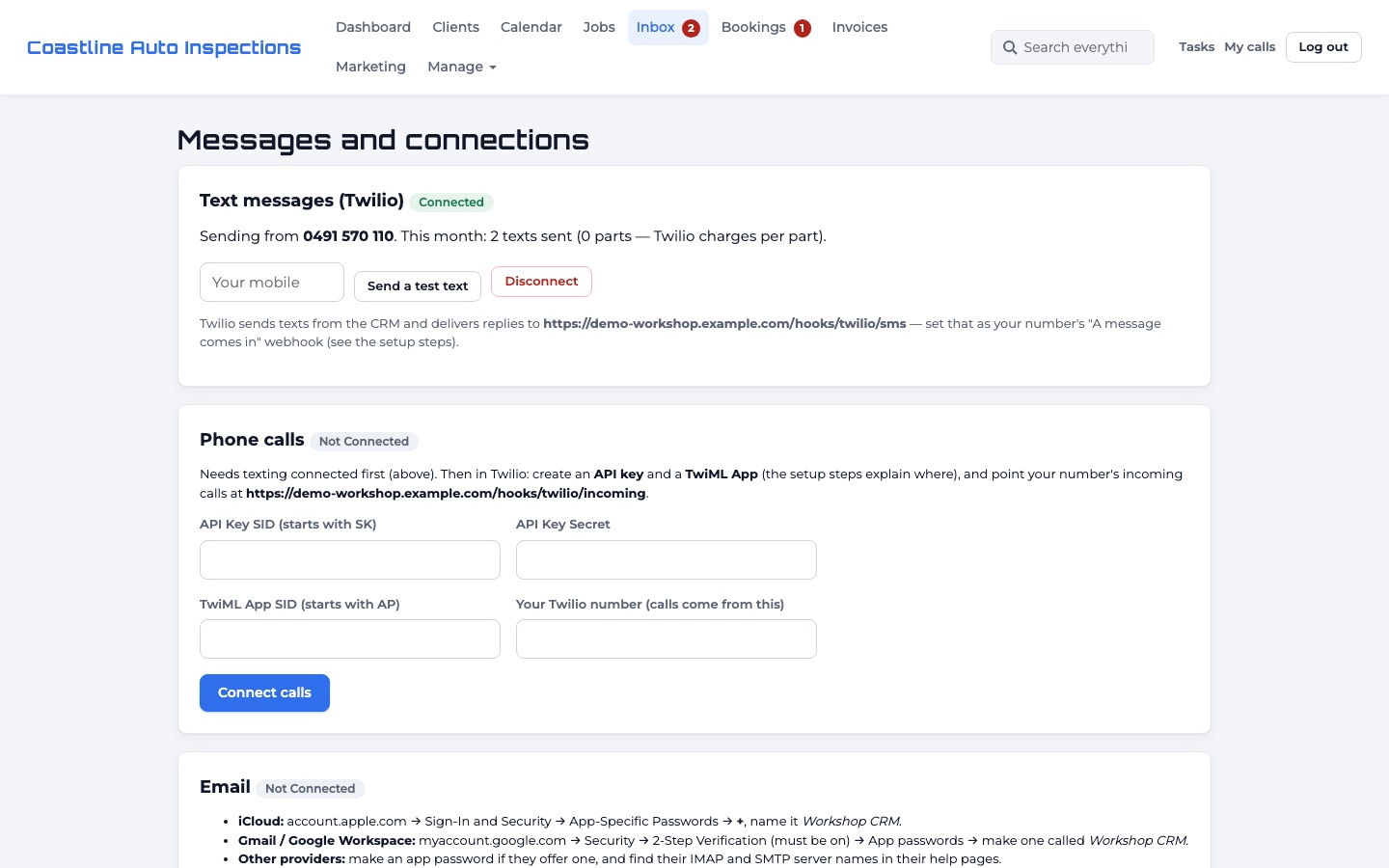
Manage → Messages and connections. Each section shows Connected or Not connected.
Texts and calls (Twilio)
- Make a Twilio account in your business's name and buy an Australian number.
- Paste your Account SID, Auth Token and the number, then send yourself a test text.
- In Twilio, point the number's "A message comes in" webhook at the address shown on the page. For calls, follow the extra steps on the page (API key and TwiML App).
- Choose your provider: iCloud, Gmail/Google Workspace or another IMAP provider.
- Make an app password with your provider (the page shows where). Never use your normal password.
- Enter your email login, the business address and the app password, then Connect. Emails to and from that address appear in the Inbox within a couple of minutes.
The CRM only reads your mailbox: it never marks emails as read, moves or deletes anything.
Card payments (Stripe)
- In your Stripe dashboard: Developers → API keys → Create restricted key (Checkout Sessions, Payment Links, Refunds and Prices: write).
- Paste it under Card payments. Booking deposits and invoice links now work, paid straight into your Stripe.
- Optional: add the webhook shown under Instant payment updates so payments show the moment they're made.
Coming One-click "Connect" buttons for Stripe, Twilio, Google and Meta.
Clients and vehicles
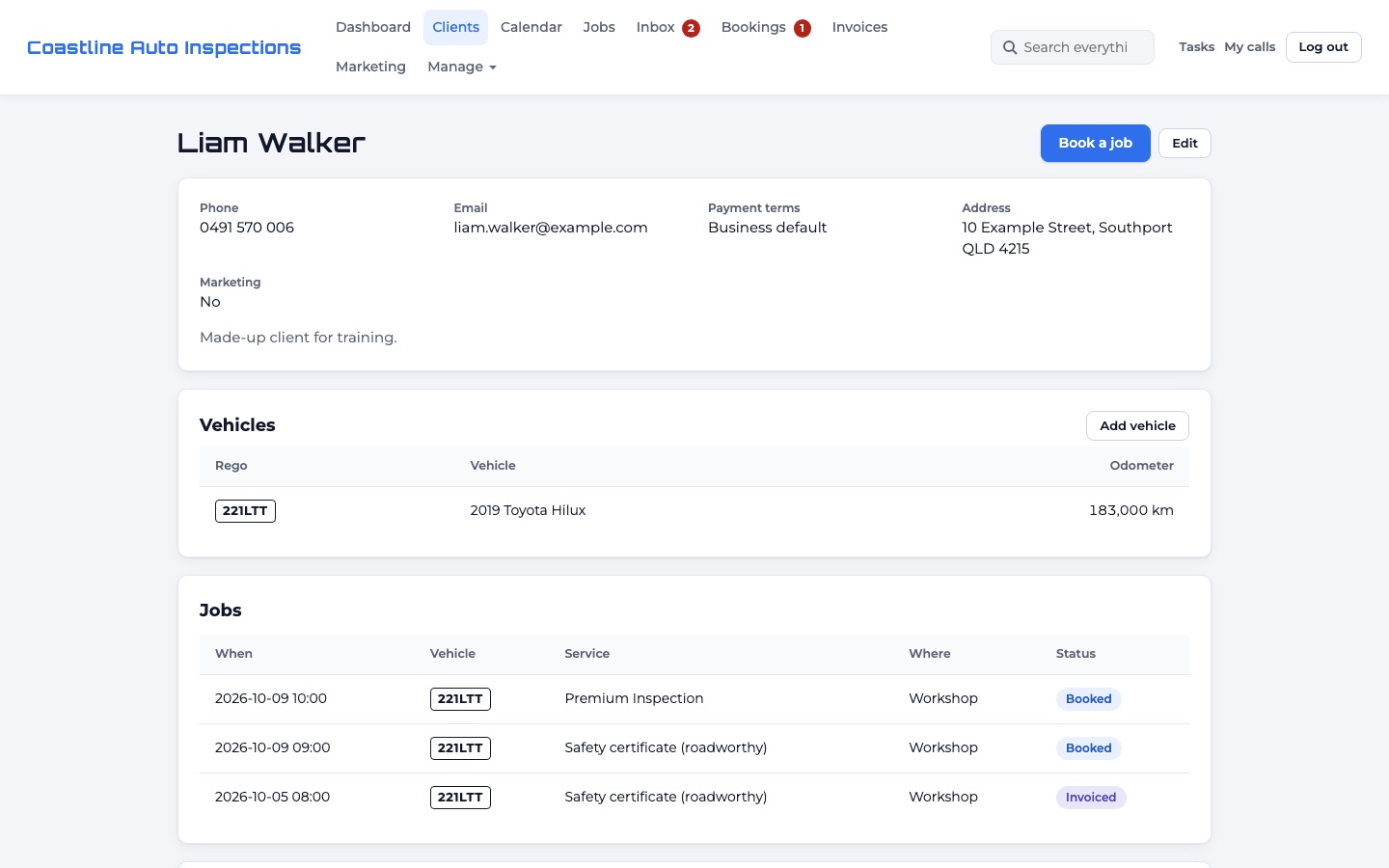
- Clients → New client: a person or a business (with ABN, accounts email and payment terms), plus extra contacts.
- Add vehicles with rego, VIN, make, model, year, colour, odometer and fleet number.
- The client page shows jobs, invoices, files and photos, and every text, email and call.
- Clients → Export downloads a CSV.
Jobs and the calendar
- From a client, a vehicle or the calendar, click New job.
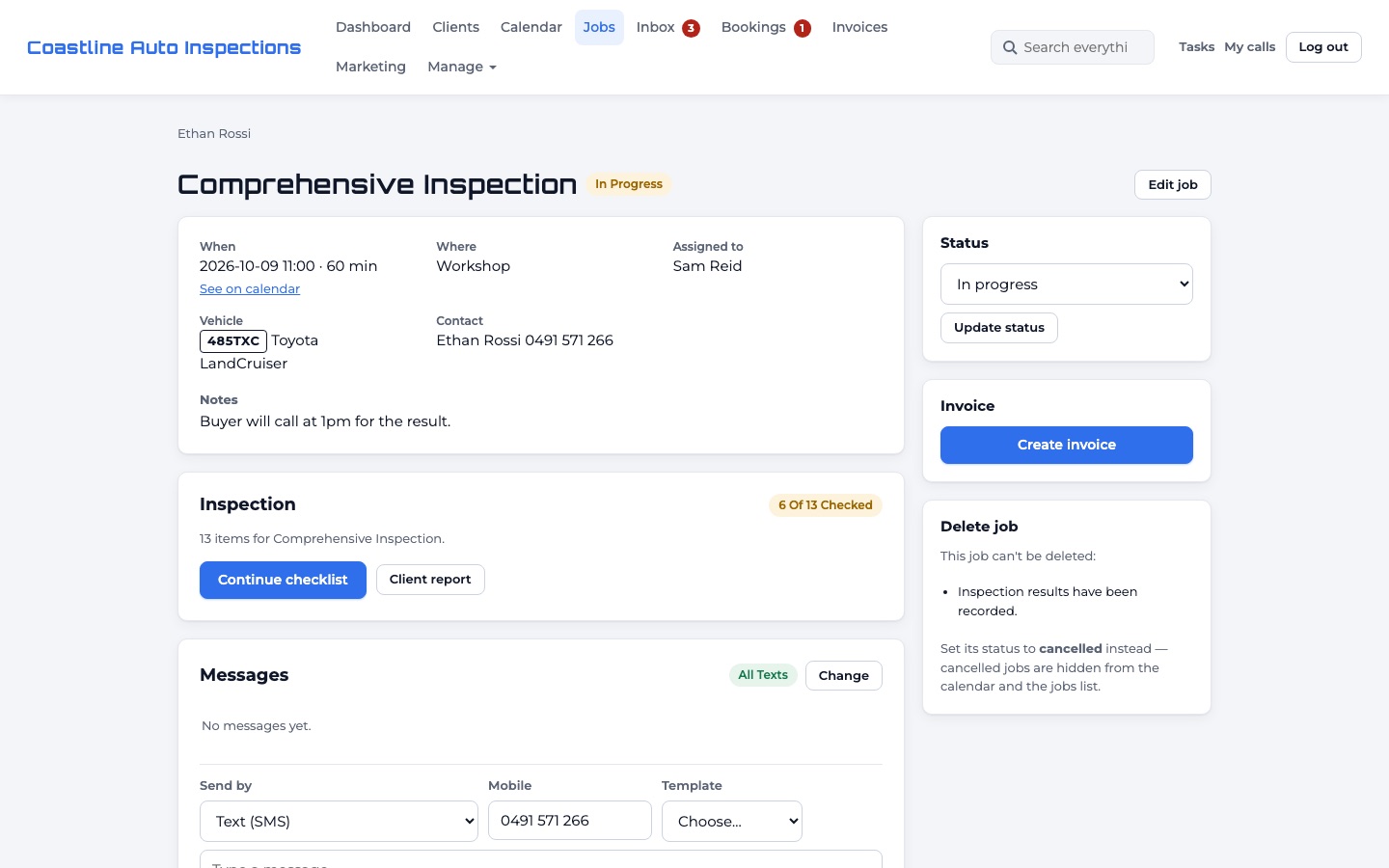
- Choose the service and level, add-ons, date and time, technician, workshop or mobile (with the address), and notes.
- The price is worked out from your services; you can change it.
- Move the job through its statuses: requested → booked → en route → in progress → complete → invoiced.
The day before, customers get an automatic reminder text (from the hour set in Messages and connections). Technicians can get a text when a job is assigned to them or moved.
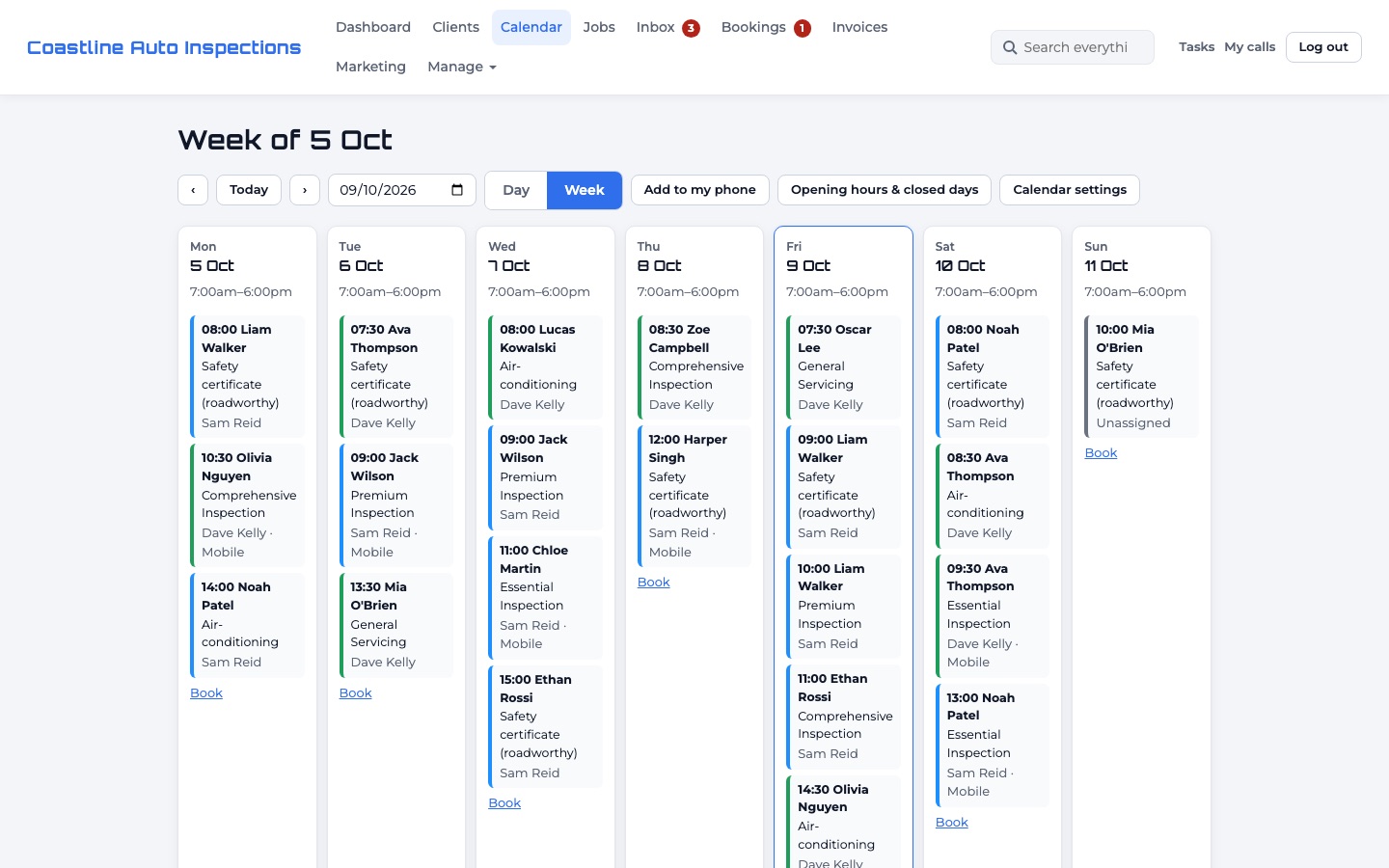
Add to my phone (on the calendar) gives each person a private calendar link for Apple, Google or Outlook Calendar.
Online booking
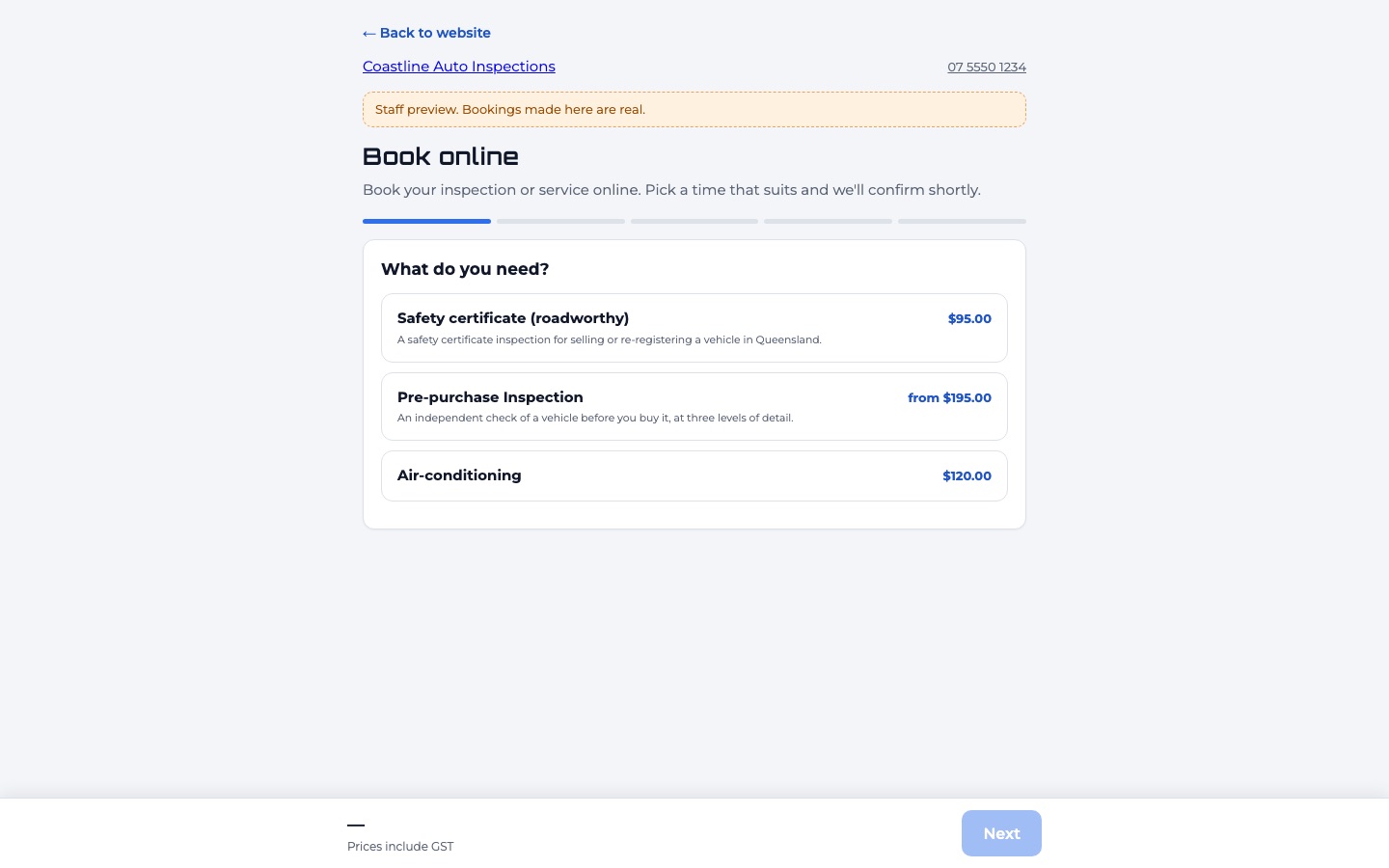
- Manage → Business settings → Online booking: switch it on, and choose no payment, a fixed or percentage deposit, or full payment.
- Set the minimum notice, how far ahead people can book and the slot length.
- Choose whether bookings are confirmed straight away or wait for you under Bookings.
- Copy your booking link (or a link that opens one service or level) to your website, Google Business Profile, Facebook and Instagram. There's also code to put the booking page inside your website.
Customers see real free times, pay any deposit by card, and a slot is held while they pay. Postcodes outside your service area are politely refused.

Inspection checklists and reports
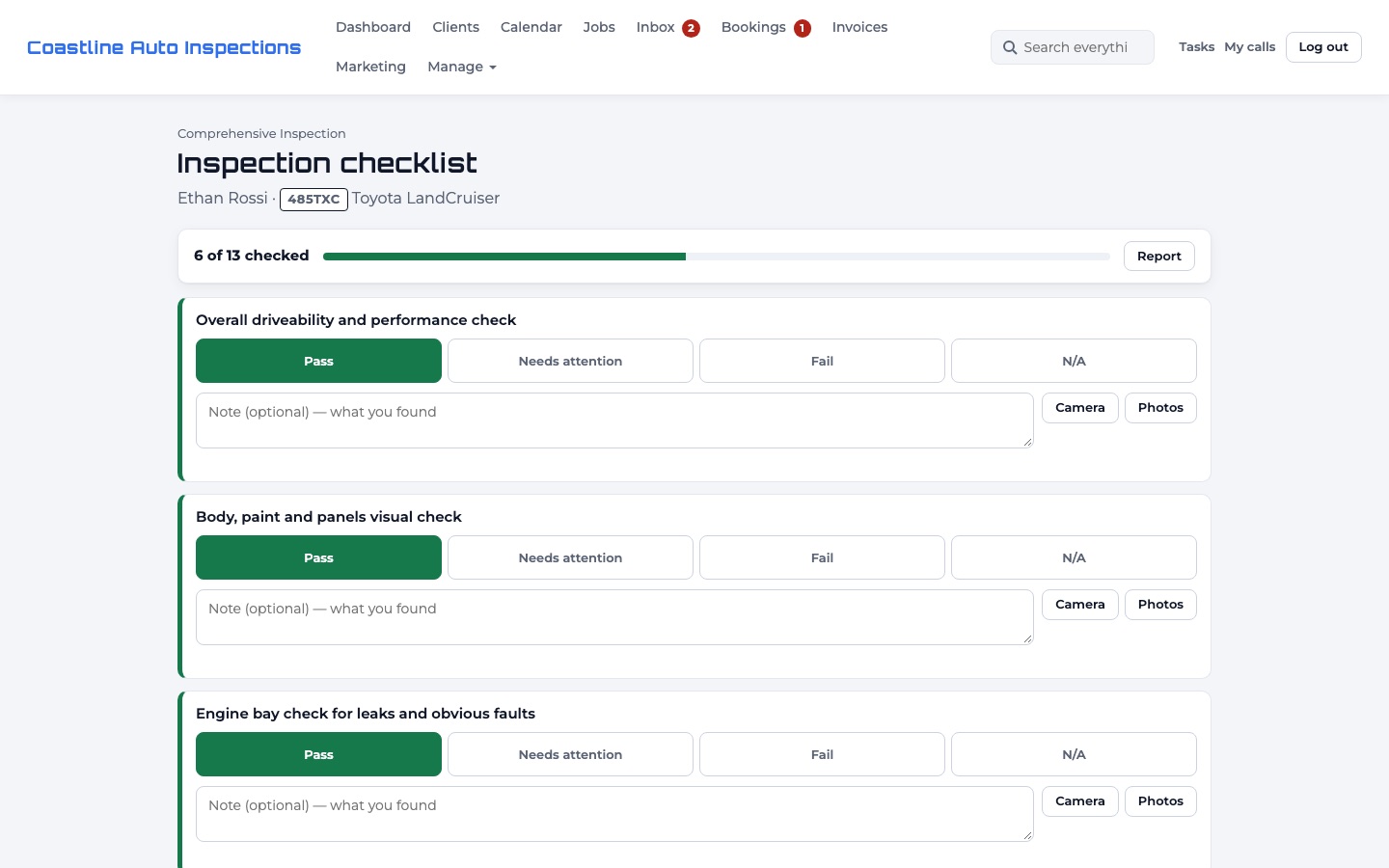
- On the job, click Start checklist. The items come from the level's "what's included" list; add extra items on the job if needed.
- Mark each item Pass, Needs attention or Fail, add notes and take photos straight from a phone or tablet.
- Write the overall summary and finish. Client report gives a printable report with your logo and disclaimer.
PJFC Car Inspection app
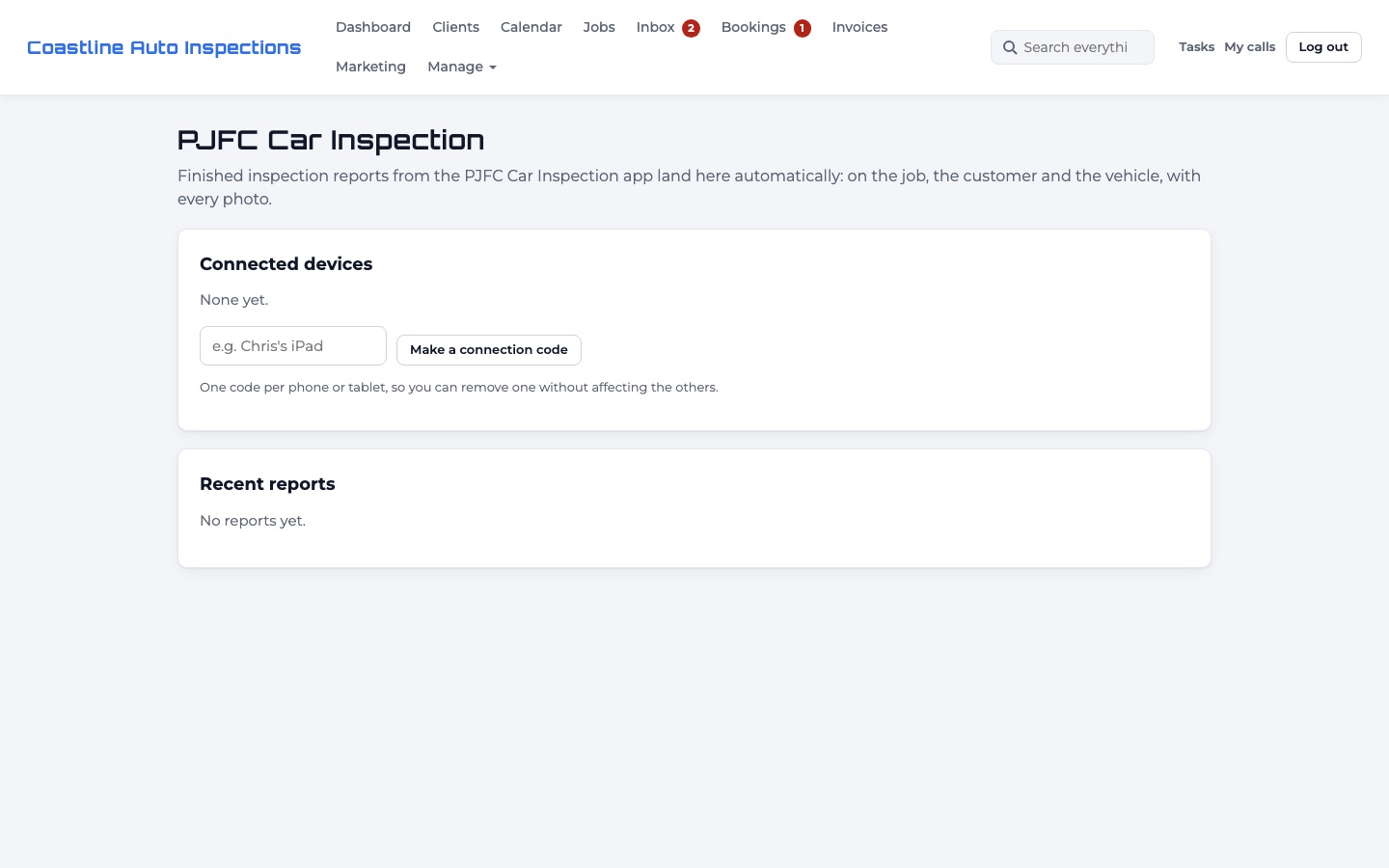
If your inspectors use PJFC Car Inspection, finished reports land in the CRM by themselves: on the job, the customer and the vehicle, with every photo.
- Manage → PJFC Car Inspection → type a name for the device (e.g. "Chris's iPad") → Make a connection code.
- In the app, paste the code into the CRM connection setting. The code is shown once; make one per device.
- When a report is sent, the CRM finds the job (the job number picked in the app, or an open job with the same rego), otherwise the customer by mobile or email, otherwise it adds a new customer and vehicle.
- Sending the same inspection again replaces the earlier copy. Remove a device to stop it sending.
The Inbox
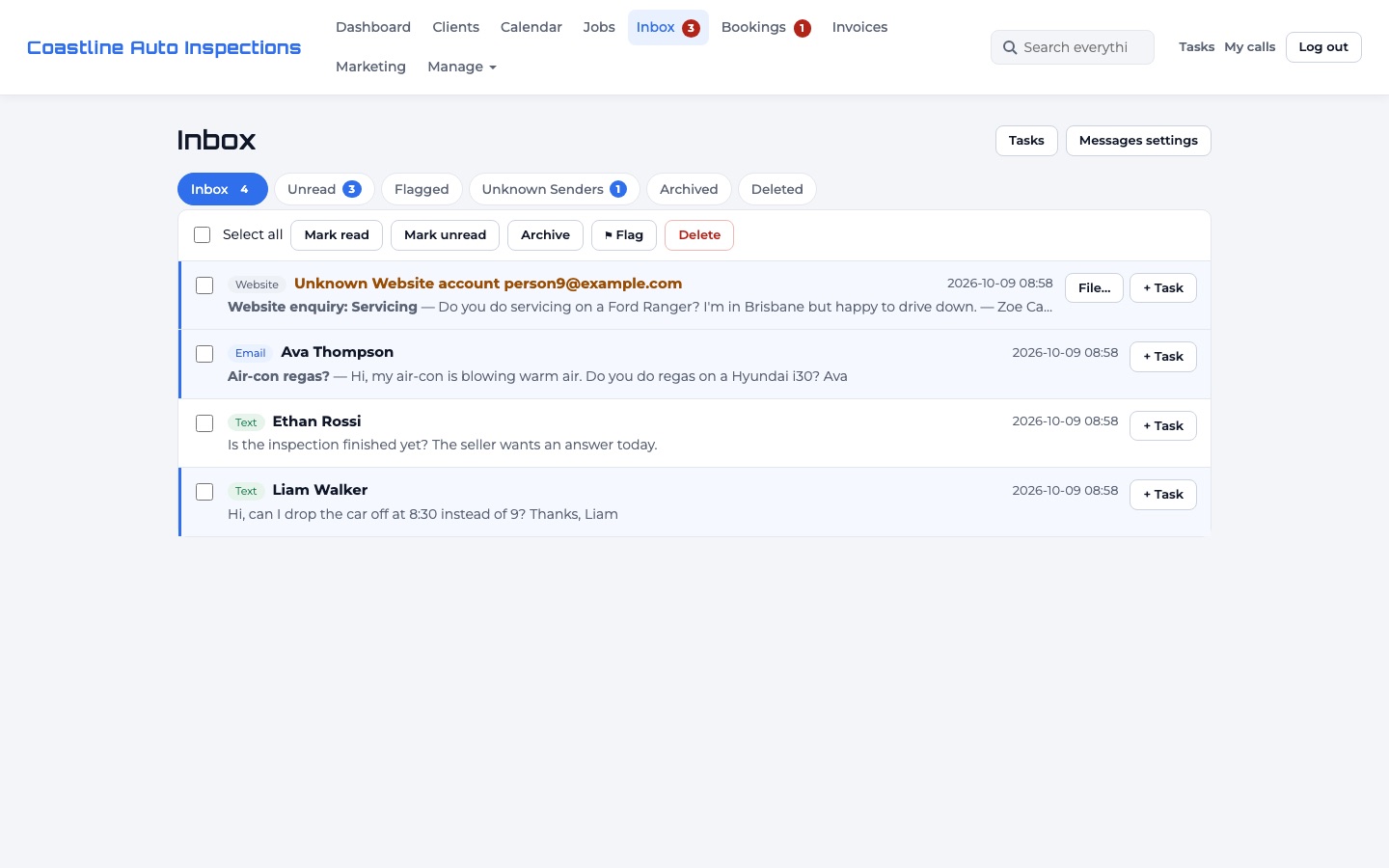
- Texts, emails, website chats, voicemails and Facebook/Instagram messages arrive here, matched to the client when we know them.
- Reply in the same channel, use quick replies, attach files, assign a task, archive or delete.
- Emails from unknown senders' newsletters and automated mail are skipped (you can change this).
- Customers who reply STOP stop getting texts; IMPORTANT means booking updates only.
Phone calls and voicemail
- Calls to your Twilio number ring staff in the CRM (browser and headset), on their mobile, or both, as each person chooses under Me.
- On a mobile, staff hear "Business call from …, press 1 to accept", so their personal voicemail never takes a customer's call.
- Outside call hours, callers hear your after-hours message and can leave a voicemail. It appears in the Inbox to play.
- Missed-call text-back (off until you switch it on) texts the caller straight away.
- Call recording is optional, with a notice played first.
AI after hours
Marketing → AI assistant. The AI answers the website chat, texts and missed calls outside office hours (or any time, if you choose), only from what you've told it:
- What the AI should know: write your FAQs and rules in plain words: what you do and don't do, which vehicles, how long jobs take, payment and parking.
- It also uses your services and prices (only if you tick "The AI may quote prices"), hours, closed days, address and service area.
- It never diagnoses faults, never makes up prices or times, says it's an AI, takes the customer's details and flags the conversation for your team.
- Daily and monthly spend limits stop it automatically. AI is included in your plan up to its allowance; you can add your own Anthropic key for more.
- Use Try it to ask it a question before switching it on.
Invoices and payments
- On a job, click Create invoice. Lines come from the job; edit, add or remove them.
- Send a payment link by text or email (needs Stripe), or mark it paid by cash, EFTPOS or bank transfer.
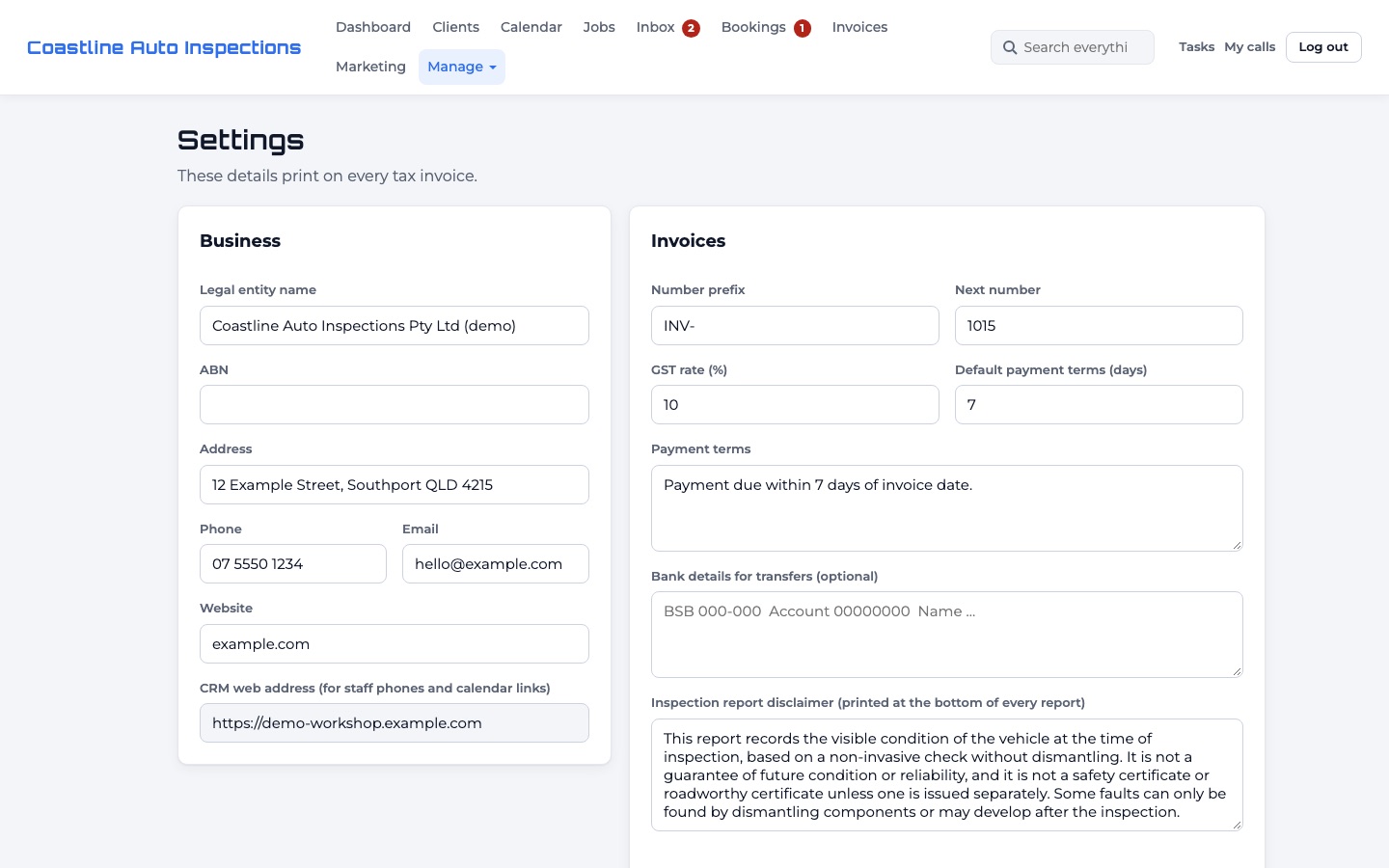
- Print or email the tax invoice. Your legal name, ABN, payment terms and bank details come from Business settings.
- Refunds through Stripe, and voiding with a reason, are on the invoice page.
Marketing, reviews and lists
- Website tracking: visitors → enquiries → bookings → paying customers, by source and page, with plain-English insights. Add the Meta Pixel and Conversions API for Facebook and Instagram ads.
- Review requests: after an invoice is paid, a polite text asks for a Google review (once your review link is set).
- Marketing lists: clients and leads in your area, filtered by last visit, vehicle age, what they've had done or "due". People who opted out are always left out, and the counts show who was excluded.
- Send a text or email campaign (opt-out wording is added for you), or export a CSV or a Meta Custom Audience file.
Test profile for training
Manage → Test profile makes a separate copy with your services and settings plus made-up customers, cars and jobs, and three trainee logins. Nothing in it is ever texted, emailed, charged or shared, and it never touches your real data. Rebuild it any time.
7. Settings reference
| Where | Setting | What it does |
|---|---|---|
| Business settings | Legal name, ABN, address, phone, email, website | Printed on tax invoices and reports, used by the AI. |
| Business settings | Invoice prefix and next number, GST rate, payment terms, bank details | How invoices are numbered and what they say. |
| Business settings | Report disclaimer | Printed at the bottom of every inspection report. |
| Business settings | Online booking (on/off, payment, notice, days ahead, slot length, postcodes, intro, terms, allowed websites) | How the public booking page behaves. |
| Messages and connections | Twilio, email, Stripe, Facebook/Instagram | Your own accounts for texts, calls, email and payments. |
| Messages and connections | Reminder hour, opt-out line, automatic texts, quick replies | Wording and timing of automatic messages. {first_name}, {date}, {time} and similar are filled in for you. |
| Calendar → Opening hours | Workshop, office and online booking hours; closed days | When jobs, calls, the AI and online booking are available. |
| Calendar settings | Who appears on the calendar, colours | How the diary looks. |
| Me | Mobile, where calls ring, call hours, alerts | Each person's own preferences. |
| Marketing | AI assistant, Meta Pixel, review link, marketing area | Marketing and AI behaviour. |
| PJFC Car Inspection | Connection codes | Which devices can send reports in. |
8. Tips and tricks
- Search by rego from anywhere: type it in the top search box.
- Give each service level its own booking link, so a Facebook ad for pre-purchase inspections opens straight on that service.
- Open your website once on each staff device with
?pjfc_ignore=1so your own visits don't count in the marketing numbers. - Use mobile jobs for inspections at the seller's place: the address shows on the job and in the reminder text.
- Keep "+" lines in a level for things the customer gets but the technician doesn't check (reports, phone debriefs).
- Try a new automatic text on yourself first with the Test button.
- Train new staff in the Test profile. Their trainee login can't see your real data.
9. Troubleshooting
| Problem | Fix |
|---|---|
| "Use your set-up link" when making the first login | Open the one-time link from your sign-up. Lost it? Email us for a new one. |
| Can't log in, "too many failed attempts" | Wait 15 minutes. An admin can reset the password in Team and permissions. |
| Texts show "Not sent: texting isn't connected yet" | Connect Twilio in Messages and connections, then send a test. |
| Replies to texts don't arrive | Check the Twilio number's "A message comes in" webhook matches the address on the connections page exactly. |
| Email won't connect | Use an app password, not your normal password. For Gmail, 2-Step Verification must be on. For other providers, check the IMAP/SMTP server names and port. |
| Online booking says "isn't open yet" | Switch it on in Business settings, and make sure at least one service is set to online booking with a price. |
| No times showing on the booking page | Check online booking hours, closed days, minimum notice and how far ahead people can book. |
| Payment links don't work | Add your Stripe key under Card payments. |
| The AI says "call or text us" straight away | The daily or monthly AI spend limit has been reached, or the AI is off. Check Marketing → AI assistant. |
| Car Inspection app says the code isn't valid | The device was removed, or the code was mistyped. Make a new code. |
| "This workshop's CRM is paused" | Your plan has ended or a payment failed. Renew at pjfcsolutions.com/account and it reopens straight away. |
10. FAQ
Is it only for inspections?
No. It's built for service, inspection and repair workshops: roadworthies, pre-purchase inspections, air-con, servicing and mobile jobs. It's not a car-dealer CRM (no stock or finance).
Can other workshops see my data?
No. Every workshop has its own separate database and files, and logins only work for their own workshop.
Does PJFC Solutions take a cut of my payments?
No. Card payments go straight into your own Stripe account; Stripe charges its normal fees.
Who pays for texts and calls?
You pay Twilio directly for your number, texts and calls, at Twilio's prices.
Does it work in my state?
Yes. Choose your state and time zone at set-up. Roadworthy services are named the way your state names them, and you can rename anything.
Can I use my own web address for booking?
Coming Your own address (e.g. book.yourworkshop.com.au) is planned. Until then, use the booking address shown in Business settings.
11. Updates, backups and your data
- Updates happen on our servers: there's nothing to install.
- Backups: every workshop's database and files are backed up nightly to separate storage, and kept for 30 days.
- Where it lives: servers in Sydney, Australia.
- Your data is yours: export clients any time (Clients → Export). If you leave, ask us for a full copy.
- Activity log (Manage → Activity log) records who did what and when.
The terms and privacy policy have the full details.
12. Getting help
- Email us: hello@pjfcsolutions.com. Tell us your workshop's name and what you were doing. Please don't send passwords or keys.
PJFC Automotive CRM is made in Australia by PJFC Solutions, and used every day in a real workshop.